Introduction
Few digital notifications are as frustrating as a sudden Storage Full Alert popping up right when you are trying to snap a photo, download an important file, or install a critical system update. When your device runs out of breathing room, it doesn’t just stop saving new data—it slows down, apps crash unexpectedly, and background security updates fail to install. Fortunately, you do not need to buy a new device or delete your favorite memories to fix the problem. By targeting hidden digital clutter, cached app data, and duplicate media, you can reclaim gigabytes of usable space across your smartphone or computer in minutes https://fibozin.com.
Key Takeaways
- Target hidden caches first: App caches and temporary browser files often consume 5GB to 20GB of silent storage without containing any personal files you need to keep.
- Tackle messaging app media: Platforms like WhatsApp and Telegram automatically download heavy videos and memes directly to your local storage unless disabled.
- Offload unused apps: Both iOS and Android allow you to remove heavy applications while preserving your personal login data and settings.
- Empty secondary trash folders: Deleting files on Windows, macOS, iOS, or Android moves them to a “Recently Deleted” or “Recycle Bin” folder where they continue taking up space for up to 30 days.
- Leverage cloud optimization: Enabling features like “Optimize Storage” keeps lightweight thumbnails on your device while storing full-resolution originals safely in the cloud.
Why Does a Storage Full Alert Happen So Quickly?
Modern operating systems and applications are significantly heavier than they were just a few years ago. High-resolution 4K video recording, lossless audio streaming, and offline map downloads eat through internal flash storage rapidly.
Beyond intentional downloads, devices accumulate “System Data” or “Other” storage. This category includes operating system update installers, crash logs, streaming buffers, and leftover files from uninstalled programs. Understanding where this invisible bloat lives is the first step toward permanently resolving a Storage Full Alert.
How to Clear Gigabytes on iPhone and iPad (iOS/iPadOS)
Apple devices make it straightforward to identify storage hogs once you know where to look. Navigate to Settings > General > iPhone Storage to view a color-coded breakdown of your capacity.
1. Offload Unused Apps
Instead of deleting an app completely, tap on large, rarely used applications in your storage menu and select Offload App. This frees up the storage space occupied by the app software itself while keeping your documents and personal data intact on your device. If you ever need the app again, tapping its icon on your home screen reinstalls it seamlessly.
2. Clear Safari Website Data and Message Attachments
Over months of browsing, Safari accumulates gigabytes of cached images and cookies. Go to Settings > Safari > Clear History and Website Data to wipe this slate clean. Additionally, inside the iPhone Storage menu, select Messages and review Large Attachments to bulk-delete old videos and GIFs sent in group chats.
3. Optimize iCloud Photos
If photos and videos consume the bulk of your capacity, go to Settings > [Your Name] > iCloud > Photos and enable Optimize iPhone Storage. Your device will automatically replace full-resolution media with smaller, device-sized versions while keeping the original files safely backed up in iCloud. [External Link: Insert official Apple Support guide on managing iCloud storage here with anchor text “Apple’s official iCloud storage optimization guide”]
[Image Placeholder 1]

How to Free Up Space on Android Devices
Android offers granular control over local files, making it easy to clear out temporary clutter without touching your personal mediahttps://fibozin.com.
1. Use the Google Files Clean Feature
Open the Files by Google app (pre-installed on most Android devices) and tap the Clean tab at the bottom. The app automatically scans for junk files, duplicate downloads, blurry photos, and memes saved from chat apps, letting you wipe gigabytes with a single tap.
2. Wipe App Cache (Without Deleting Data)
Social media apps like TikTok, Instagram, and YouTube store massive amounts of pre-loaded video clips in their cache. To clear them:
- Open Settings > Apps.
- Sort your apps by Size.
- Tap the largest apps, select Storage & cache, and tap Clear cache. (Avoid tapping “Clear storage” unless you want to log out and reset the app).
3. Restrict Automatic Media Downloads in Messaging Apps
WhatsApp is notorious for triggering a Storage Full Alert on Android. Open WhatsApp > Settings > Storage and data, and under Media auto-download, uncheck Photos, Audio, Videos, and Documents when using mobile data and Wi-Fi. You can also tap Manage storage inside WhatsApp to delete forwarded videos larger than 5MB https://www.atlassian.com.
How to Reclaim Storage on Windows PC and Mac
Desktop and laptop computers accumulate massive system files, installer packages, and browser downloads that quietly fill up solid-state drives (SSDs).
1. Run Built-in Storage Cleanup Tools
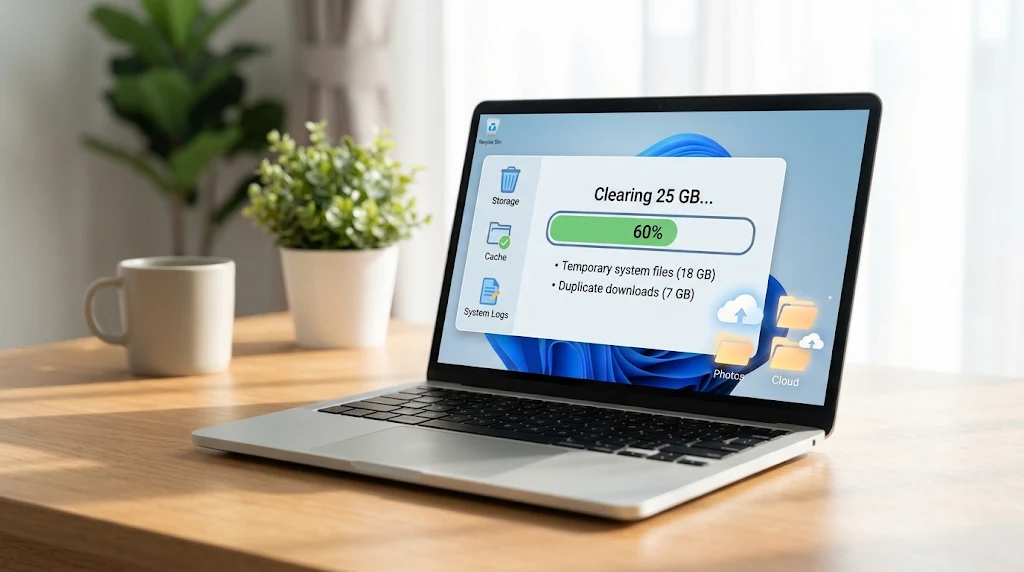
- On Windows 11/10: Open Settings > System > Storage and turn on Storage Sense. Click into Temporary files to safely remove Windows Update Cleanup files, Delivery Optimization Files, and Thumbnails, which regularly free up 10GB or more.
- On macOS: Click the Apple Menu > System Settings > General > Storage. Review the recommendations bar to enable Optimize Storage (which automatically removes watched Apple TV movies and shows) and review large files in the Documents and Applications tabs.
2. Purge Your Downloads Folder and Empty the Trash
Most users treat their Downloads folder as permanent storage, leaving .exe, .dmg, .zip, and duplicate PDF files sitting there for years. Sort your Downloads folder by Size, delete what you no longer need, and immediately empty your Recycle Bin (Windows) or Trash (Mac). Files remain counted against your drive capacity until the trash is permanently emptied. [Internal Link: Insert relevant internal URL here with anchor text “best cloud backup solutions for Windows and Mac”]
[Image Placeholder 2]
Best Practices to Prevent Future Storage Warnings
Once you resolve your immediate Storage Full Alert, a few automated habits will ensure you never hit the ceiling again:
- Schedule monthly cloud syncs: Set Google Photos, OneDrive, or iCloud to back up your camera roll automatically over Wi-Fi, then use the “Free up space” tool to remove local copies already backed up to the cloud.
- Lower default video recording resolution: Recording every casual video in 4K at 60fps uses roughly 400MB per minute. Switching your camera settings to 1080p HD at 30fps cuts file sizes by more than half while still looking sharp on phone screens.
- Audit streaming downloads: Netflix, Spotify, and Audible offline downloads silently consume huge chunks of storage. Set a reminder every few months to clear watched episodes and finished playlists. [Internal Link: Insert relevant internal URL here with anchor text “how to organize your digital files efficiently”]
[Image Placeholder 3]

Conclusion
Dealing with a Storage Full Alert doesn’t require drastic measures or expensive hardware upgrades. By systematically clearing hidden app caches, trimming heavy messaging attachments, utilizing built-in OS cleanup utilities, and offloading full-resolution photos to the cloud, you can easily recover 10GB to 50GB of storage in a single afternoon. Start with your device’s built-in storage analyzer today, clear out the temporary clutter, and keep your phone or computer running at peak speed.
Frequently Asked Questions (FAQs)
Why does my phone still show a Storage Full Alert after deleting photos?
When you delete photos or videos on an iPhone or Android device, they are moved to a Recently Deleted or Trash album for 30 days in case you change your mind. They continue occupying full storage space until you open that specific folder and permanently delete them.
What is “System Data” or “Other” storage, and how do I reduce it?
System Data consists of operating system caches, streaming buffers, log files, and temporary update files. You can reduce it by restarting your device, clearing your web browser cache, deleting offline streaming downloads, and clearing caches inside heavy social media apps.
Does clearing app cache delete my login info or personal files?
No. Clearing the cache only removes temporary files like image thumbnails and video buffers that the app can easily re-download later. Your account login, settings, and saved data remain completely untouched. However, selecting “Clear Data” or “Clear Storage” will reset the app entirely.
How much free storage space should I keep on my device for optimal performance?
As a general rule, try to keep at least 10% to 15% of your total storage capacity free. Operating systems rely on free space for virtual memory, temporary swap files, and smooth background updates.
Leave a Reply