Introduction
Experiencing a sudden drive error message like “You need to format the disk before you can use it” or finding your external storage unrecognized in File Explorer is a nightmare scenario for any user. Whether it is a flash drive containing important documents or an external hard disk holding family photos, file corruption can render critical files inaccessible in an instant https://fibozin.com.
Understanding the principles of recovering data from corrupted USB drives and external HDDs allows you to restore missing partition tables, fix unreadable file systems, and salvage corrupt sectors without risking permanent data loss. This step-by-step walkthrough details native command-line repair tools, third-party software workflows, and driver troubleshooting methods to safely retrieve your files.
Key Takeaways
- Stop Writing New Data Immediately: Continuing to use or attempting to re-format a corrupted drive overwrites underlying file headers, making permanent file recovery impossible.
- Diagnose Before Repairing: Determine whether the corruption is logical (file system corruption, RAW partition, bad sectors) or physical (clicking noises, dead controller board) before running recovery tools.
- Try Built-in Command Line Tools: Native tools like Windows
CHKDSKandDiskpartcan fix file record segment errors without losing existing data. - Use Dedicated Recovery Utilities: For RAW drives or lost partitions, specialized tools like TestDisk, Recuva, or EaseUS safely extract raw sectors without altering original drive structures.
- Avoid Auto-Formatting Prompts: Never accept OS formatting prompts when plugging in an unreadable drive—formatting resets index tables and complicates recovery.
Step 1: Preliminary Diagnostics and Safe Setup
Before running intensive recovery software, execute initial checks to ensure the drive is not failing due to simple connection faults or driver glitches.
1. Test Physical Connections
- Switch USB ports—connect directly to the motherboard’s rear ports on desktop PCs rather than front-panel hubs or unpowered USB extenders Wikipedia.
- Try connecting the external hard drive using a known working USB-A or USB-C cable.
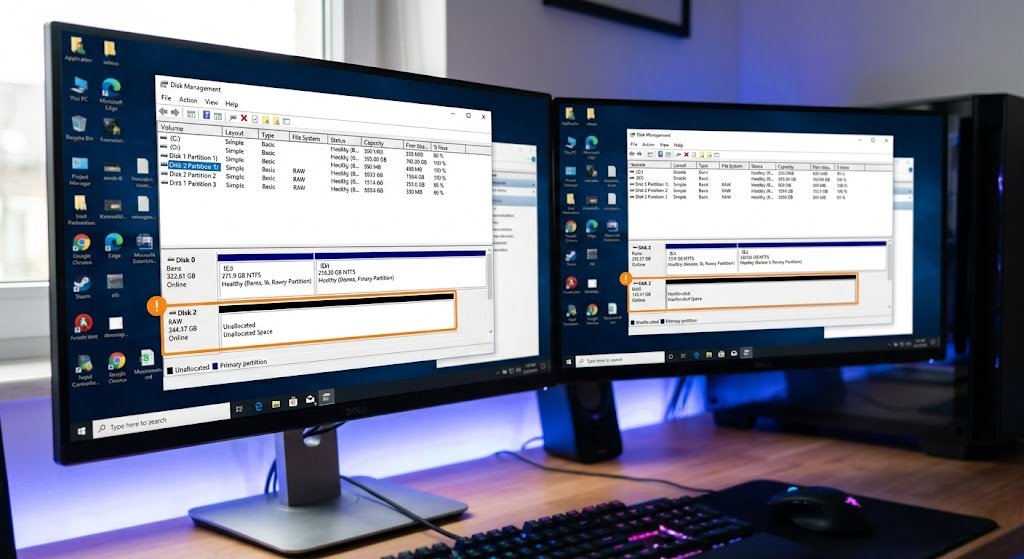
2. Verify Recognition in Disk Management
- Press Windows + X and select Disk Management (or
diskmgmt.msc). - Check if your corrupted drive is visible in the bottom panel.
- If listed as RAW or Unallocated: The hardware controller works, but the file system (NTFS, FAT32, exFAT) is damaged. This is ideal for software recovery.
- If marked as No Media or Missing: The drive controller board or flash NAND chip has suffered hardware failure.
[Internal Link: Check out our diagnostic guide on fixing laptop battery drain and power issues]
Step 2: Fixing File System Errors with Command-Line Tools
If Windows identifies a drive letter (e.g., E: or F:) but reports it as inaccessible, native command-line tools can repair damaged Master Boot Records (MBR) and file allocation tables.

Running CHKDSK on Windows:
- Press the Windows Key, type cmd, right-click Command Prompt, and select Run as administrator.
- Type the following command and press Enter (replace
X:with your corrupted drive letter):chkdsk X: /f /r /x/finstructs the utility to fix detected file system errors./rlocates bad sectors and recovers readable information./xforces the volume to dismount before scanning begins.
- Allow the repair scan to complete. Do not interrupt the terminal while file record segments are being verified.
Step 3: Using Advanced Recovery Software for RAW Drives
When CHKDSK reports “CHKDSK is not available for RAW drives,” you must use raw sector extraction software to read files bypassing OS partitions.
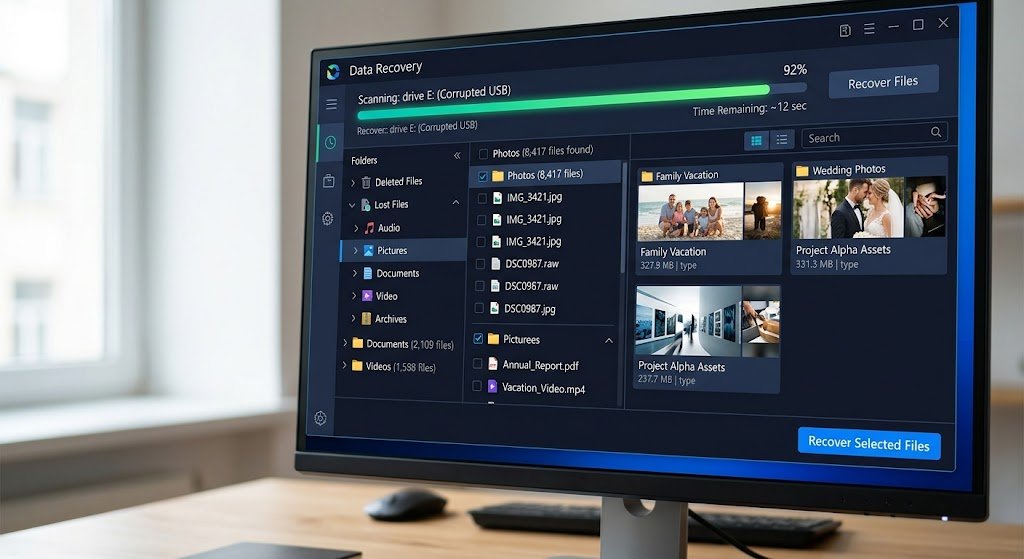
How to Retrieve Files with Deep Scan Software:
- Download a reputable data recovery tool (e.g., EaseUS Data Recovery, Disk Drill, or the open-source utility TestDisk).
- Launch the application and select the corrupted USB drive or external HDD from the list of storage volumes.
- Initiate a Deep Scan. The tool will scan byte-by-byte for recognized file headers (like JPEG, MP4, PDF, and DOCX).
- Preview detected files once scanning finishes.
- Select the missing files and click Recover. Important: Always save recovered files onto a different drive (such as your internal PC SSD) to prevent overwriting sectors on the corrupted drive.
[External Link: Read Microsoft’s official guide on using Windows File Recovery CLI tools]
Frequently Asked Questions (FAQs)
What is the difference between logical and physical corruption?
Logical corruption happens when data structures (such as file system indexes or partition tables) become corrupted while the physical storage media remains healthy. Software tools can easily recover logical errors. Physical corruption involves mechanical hardware failure, clicking drive heads, or burnt controller circuits, which require professional cleanroom recovery services.
Can I recover files from a corrupted USB drive without formatting?
Yes. Using command-line repairs (chkdsk), assigning a new drive letter via Disk Management, or utilizing dedicated raw-file recovery software allows you to extract files directly without formatting the storage device.
Why did my external hard drive suddenly turn RAW?
RAW drive corruption typically occurs due to unsafe ejection while active read/write operations were in progress, sudden power loss, corrupted USB controller drivers, or deteriorating bad memory sectors on the drive.
Final Thoughts
Mastering recovering data from corrupted USB drives and external HDDs saves you time, stress, and costly service fees. By halting further write operations, performing systematic command-line diagnostics, and deploying raw extraction software, you can safely restore your critical files from damaged storage devices.
Leave a Reply