Introduction:
There is nothing more frustrating than a streaming show buffering at the cliffhanger or a crucial video call dropping mid-sentence because of a weak Wi-Fi connection. In our interconnected lives, a robust wireless network is not a luxury; it is a necessity. However, even the most advanced networking equipment can be defeated by your home’s architecture, interfering devices, or simple placement errors.
If you are tired of dealing with internet “dead zones,” you are in the right place. This expert guide will walk you through proven, actionable strategies for how to fix weak signal areas in your home immediately. We’ll move beyond simple reboots into strategic placement, hardware upgrades, and network optimizations to ensure seamless connectivity in every room https://fibozin.com.
Most Important Points (Key Takeaways)
- Location is Everything: The single most effective (and free) fix is placing your router in a central, elevated position, clear of obstructions.
- Identify Interference: Electronics (microwaves, baby monitors) and physical barriers (concrete, metal) are major signal killers.
- Optimize Existing Hardware: Simply upgrading firmware and switching Wi-Fi channels can resolve persistent interference issues.
- Invest in Mesh Wi-Fi: For larger homes, a mesh network is superior to basic extenders, providing seamless whole-home coverage.
- Utilize Wired Backhauls: Whenever possible, use Ethernet or MoCA adapters to connect Wi-Fi nodes for maximum performance.
Understanding Why You Have Weak Signal Areas
Before you can effectively fix the issue, you must understand the underlying causes of weak signal areas. Wi-Fi signals operate as radio waves, specifically in the 2.4 GHz and 5 GHz spectrums. These waves struggle against two main adversaries: physical impediments and electromagnetic interference.
1. Physical Obstructions
Concrete walls, brickwork, metal lathing (found in older plaster walls), and even large mirrors can severely attenuate or entirely block Wi-Fi signals. In many homes, the weak signal area is simply the room farthest from the router, separated by the most structural barriers.
2. Electronic Interference
Your home is likely filled with devices that compete for airspace on the 2.4 GHz band. Cordless phones, microwaves, Bluetooth devices, and even some smart home gadgets can interfere with your router’s broadcast, creating instability and dead zones.
Strategy #1: Strategic Router Placement (The Free Fix)
When people ask how to fix weak signal areas in your home, they are often surprised to learn that optimal placement is the most common resolution. Many users place their routers in hidden corners, behind TVs, or inside cabinets for aesthetic reasons, severely hampering their performance.
Centralize the Signal
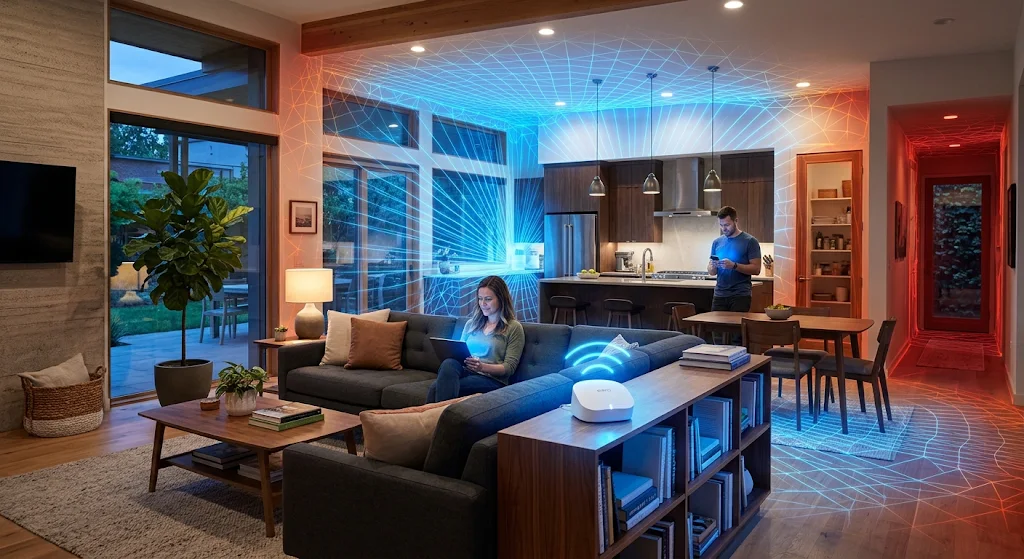
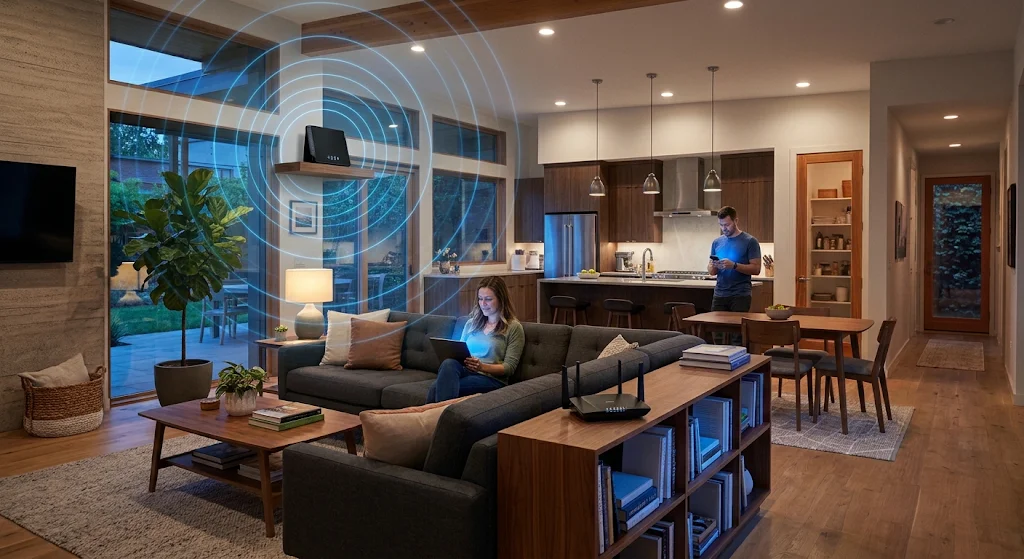
Your router broadcasts signals Omni-directionally. If you place it against an exterior wall or in a basement corner, you are wasting 50% or more of its signal potential by broadcasting it outside or into the dirt. Place your router in the most central location of your home, preferably in an open area like a main hallway or open-plan living room.
Get it High and Open
Place the router on a shelf or mounted on a wall. Signal strength degrades when passing through furniture. You also want to avoid placing it on the floor, as the signal immediately reflects and absorbs into the flooring material.
[Image Placeholder 1]
Strategy #2: Fine-Tuning Your Network Settings
Often, the problem isn’t that the signal cannot reach the area, but that the signal is being disrupted. You can often implement solutions for how to fix weak signal areas in your home through simple software tweaks.
Optimize Your Wi-Fi Channels
If you live in a dense residential area, your neighbors’ networks might be crowding your Wi-Fi channels.
- For 2.4 GHz: Change your channel to 1, 6, or 11 (the non-overlapping channels).
- For 5 GHz: Modern routers usually handle this better, but selecting a “DFS” (Dynamic Frequency Selection) channel can often find completely empty spectrum. Most modern routers allow you to change these settings via a mobile app or web interface.
Perform Firmware Updates
Router manufacturers frequently release software updates (firmware) that fix known bugs, optimize antenna performance, and enhance security. Log in to your router dashboard regularly and verify you are running the latest version https://www.atlassian.com.
[Internal Link: A Complete Guide to Optimizing Your Smart Home Network for Speed and Reliability]
Strategy #3: Hardware Upgrades and Network Expansion
If centralized placement and setting tweaks haven’t solved the issue, especially in homes over 2,000 sq ft or with complex layouts, you must physically expand your network.
The Superior Choice: Mesh Wi-Fi Systems
When considering how to fix weak signal areas in your home in a large or signal-hostile space, a mesh system is the definitive answer. A mesh network uses multiple nodes that work together as a single network. Unlike traditional range extenders (which create separate, slower networks), a mesh system provides seamless roaming and maximum speed.
When setting up mesh nodes:
- Place the main node (connected to your modem) centrally.
- Place satellite nodes halfway between the main node and your existing weak signal area.
- Ensure nodes have a clear line of sight to each other whenever possible.
[External Link: The FCC’s Guide to Household Broadband Needs and Optimization]
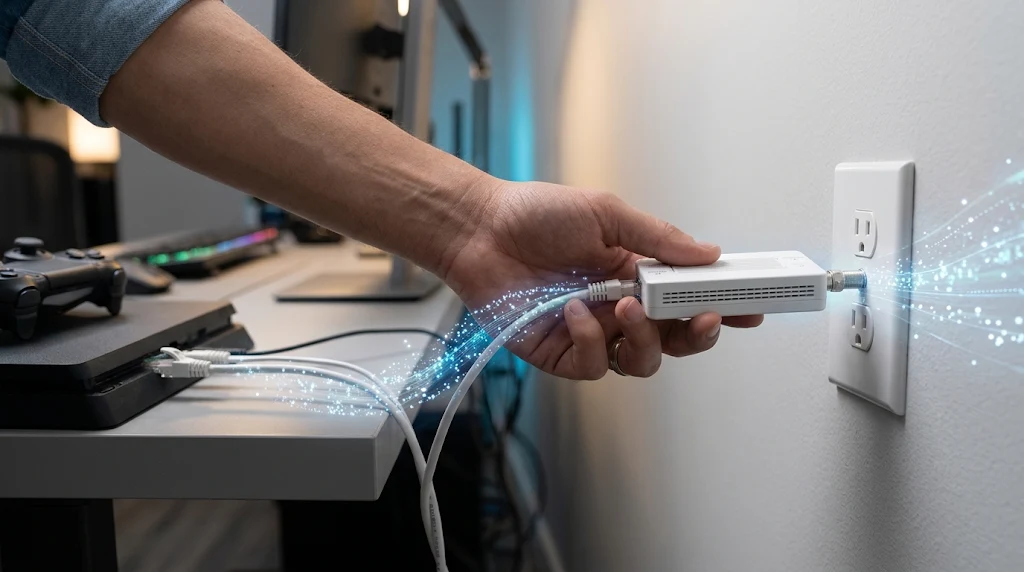
Powerline Adapters and MoCA
If walls are the primary barrier, you can use existing home wiring to bypass them.
- Powerline Adapters: Send internet signals through your electrical outlets. They are easy to install but can be sensitive to electrical “noise” (like from a refrigerator).
- MoCA (Multimedia over Coax) Adapters: Utilize your existing coaxial (TV) cable wiring. MoCA is generally faster and more reliable than Powerline, offering near-Ethernet speeds.
[Image Placeholder 2]
Advanced Tip: Creating a Wired Backhaul
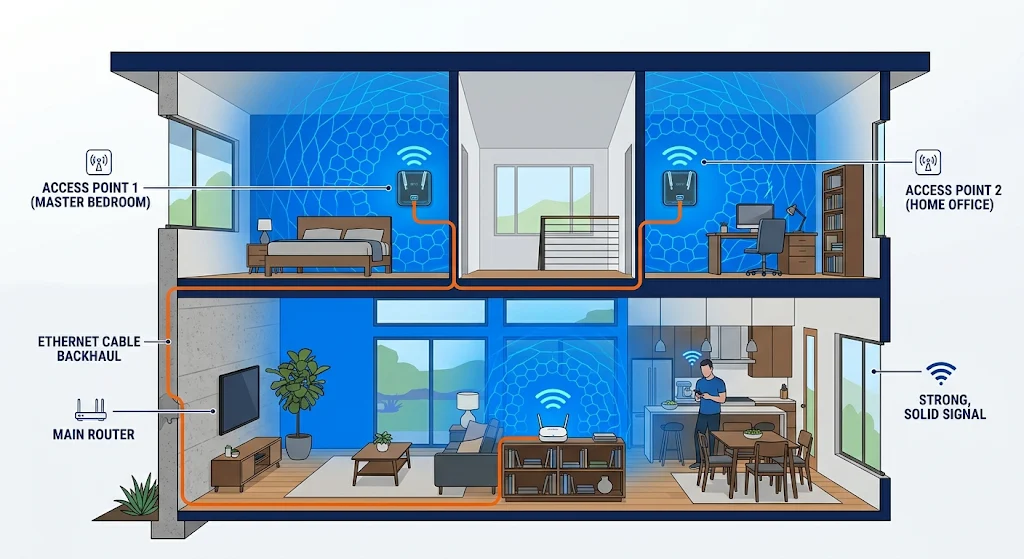
For the absolute best performance, both mesh systems and extenders should use a wired backhaul. This means connecting the main router and the secondary nodes/access points with a physical Ethernet cable. This guarantees that 100% of the wireless capacity of the secondary nodes is available for your client devices (phones, laptops) rather than being used up communicating back to the main router.
[Image Placeholder 3]
A Comprehensive Approach to Whole-Home Wi-Fi
Fixing weak signal areas often requires a systematic approach. Don’t simply jump to buying new hardware.
- Analyze: Use a Wi-Fi analyzer app (many free options exist) on your phone to physically trace the exact boundaries of the dead zone.
- Reposition: Apply Strategy #1 and centralize your router. Retest.
- Optimize: Apply Strategy #2 and check firmware and channels. Retest.
- Expand: If the issue persists, apply Strategy #3. Invest in a mesh system or MoCA adapters.
By following this hierarchy, you avoid unnecessary expenses and build the most robust network possible.
Conclusion
Understanding how to fix weak signal areas in your home is fundamentally about understanding how your specific home’s environment interacts with wireless signals. For many, a simple relocation of the existing router high and centrally is all that is required. For others, particularly in larger homes, investing in modern mesh technology is the necessary step toward ubiquitous connectivity. By following the strategies outlined above, you can eliminate dead zones and ensure that stable, high-speed internet is available in every corner of your living space.
Frequently Asked Questions (FAQs)
Why does my Wi-Fi keep dropping in the living room?
Your living room might be far from the router, or physical obstacles (like a large stone fireplace or mirrors) could be blocking the signal. Additionally, electronic interference from TVs or soundbars can disrupt the connection. The best first step is to try repositioning the router.
Will buying a newer router fix my weak signal?
Not necessarily. A newer, high-power router might have better range than an older model, but it still cannot penetrate solid concrete or steel structures. If structural interference is the issue, strategically placed mesh nodes are a better investment than a single, expensive router.
Can an old range extender actually make my signal worse?
Yes. Traditional range extenders capture your existing signal, amplify it, and re-broadcast it. This process introduces latency and usually creates a secondary network. Worse, because it’s re-broadcasting, it effectively halves the bandwidth in that area because it must send and receive data simultaneously on the same channel, often causing more interference than it solves.
What is the cheapest way to fix weak signal areas?
The absolute cheapest (and free) method is optimizing router placement. Move your router to a central, open, and elevated location (e.g., on top of a bookshelf in the hallway). Clearing firmware and changing Wi-Fi channels to avoid interference is also free and can offer significant improvements.
Leave a Reply