Introduction
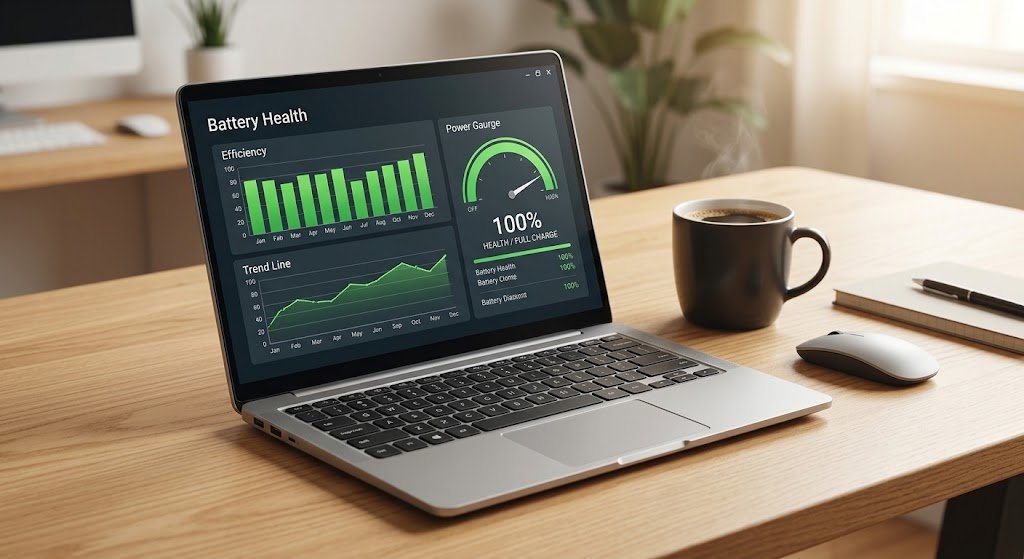
Experiencing rapid battery degradation or sudden power drops on your laptop can disrupt productivity, especially when you are working on the go. Whether you are running Windows 11, Windows 10, or macOS, fast energy consumption is rarely caused by a dead battery alone https://fibozin.com. More often, it stems from misconfigured OS power plans, rogue background processes, uncalibrated fuel gauge chips, or outdated device drivers.
If you are wondering how to fix laptop battery drain, this comprehensive guide provides proven step-by-step troubleshooting techniques. From performing detailed battery health reports and adjusting system settings to manually calibrating your battery cells, these actionable hacks will help maximize your device’s unplugged uptime.
Key Takeaways
- Run System Battery Diagnostics: Generate a native system battery report (
powercfg /batteryreporton Windows) to check design capacity against full charge capacity before tweaking settings. - Calibrate the Battery Gauge: Eliminate sudden shutdowns at 20% by performing a full charge, complete discharge, and re-charge cycle to reset system battery mapping.
- Eliminate Background Resource Hogs: Identify and restrict resource-heavy applications, startup items, and background sync services that keep your CPU in high-power states.
- Optimize Display and Thermal Settings: Lower display brightness, shorten display sleep timers, and clean internal cooling fans to prevent heat-induced power loss.
Step 1: Diagnose Battery Health and Capacity
Before altering system configurations, verify whether your battery drain is caused by software misconfigurations or physical hardware wear https://www.atlassian.com.
How to Generate a Windows Battery Report
- Right-click the Start button and select Terminal (Admin) or Command Prompt (Admin).
- Type
powercfg /batteryreportand press Enter. - Open the generated HTML file located at
C:\Users\[YourUsername]\battery-report.htmlin your web browser. - Compare DESIGN CAPACITY with FULL CHARGE CAPACITY. If full charge capacity is less than 50% of design capacity, physical battery degradation is the primary cause of fast battery drain.
How to Check Battery Health on macOS
- Open System Settings and navigate to Battery.
- Locate Battery Health and click the info icon (i).
- If the condition displays Service Recommended, your lithium-ion cells require replacement.
[Internal Link: Check out our complete guide to diagnosing computer overheating issues]
Step 2: Calibrate Your Laptop Battery (The Calibration Hack)
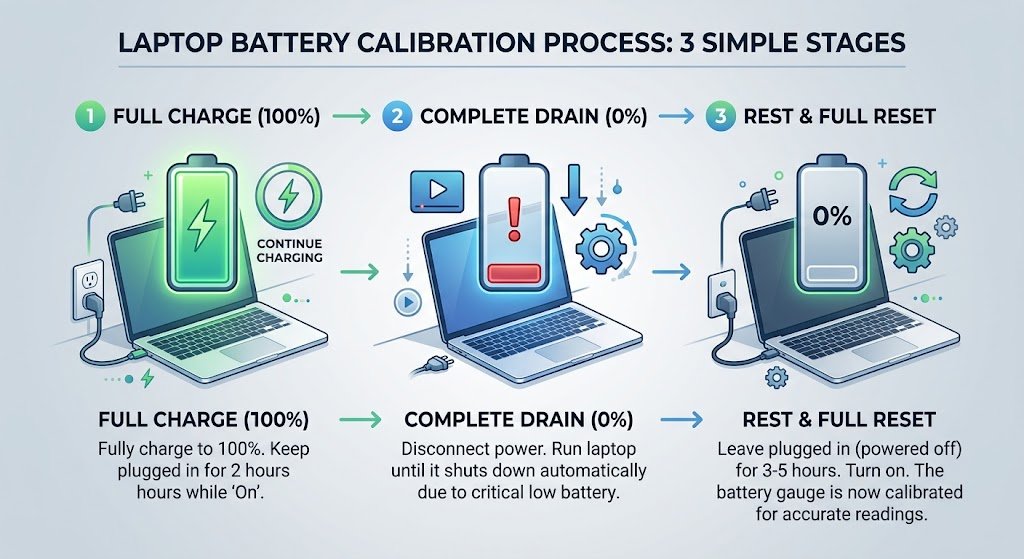
Over time, the micro-controller that estimates remaining battery percentage desynchronizes from the chemical cells. This causes your laptop to shut down unexpectedly even when showing 15% or 20% remaining charge.
The Standard Manual Calibration Protocol:
- Charge to 100%: Plug in your laptop and let it charge uninterrupted until it reaches 100%. Keep it plugged in for an additional two hours to ensure cell balance.
- Configure Power Options: Go to Power Options and prevent the laptop from entering Sleep or Hibernate mode automatically.
- Drain the Battery Completely: Unplug the power adapter and let the laptop run until it shuts down automatically due to power exhaustion. (You can play videos or run light applications to speed up the process).
- Rest Period: Leave the laptop powered off and unplugged for 3 to 5 hours to cool down and fully drain residual charge.
- Recharge Without Interruption: Plug the charger back in and charge the laptop continuously back to 100% while keeping the power off.
Once turned back on, your operating system will accurately read the battery’s real-time charge limits.
Step 3: Optimize OS Settings and Power Plans
Adjusting operating system parameters yields immediate power savings without purchasing new hardware.
1. Enable Adaptive Power Modes
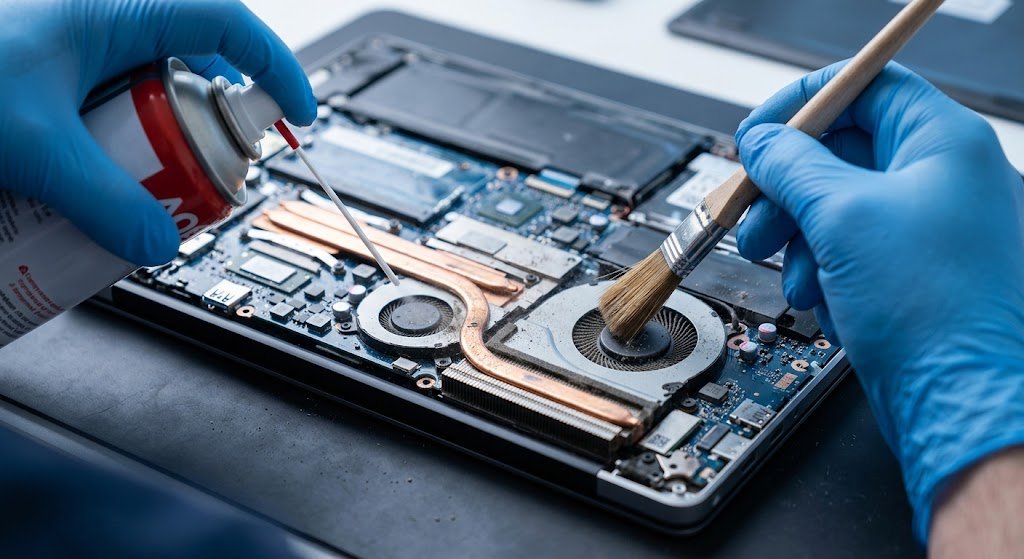
- Windows: Open Settings > System > Power & battery. Set Power mode to Best power efficiency.
- macOS: Navigate to System Settings > Battery and toggle on Low Power Mode for both battery and power adapter states.
2. Tame Display Brightness and Refresh Rates
The display backlight is often the single largest consumer of battery power.
- Reduce display brightness to 40%–50% during indoor use.
- If your laptop screen supports high refresh rates ($120\text{ Hz}$ or $144\text{ Hz}$), drop the refresh rate to $60\text{ Hz}$ in display settings when running on battery power.
3. Disable Unnecessary Startup Apps and Background Services
Rogue applications running in the background keep CPU cores from entering idle power states ($C\text{-states}$).
- Open Task Manager (
Ctrl + Shift + Esc), click Startup apps, and disable non-essential programs like cloud sync utilities, game launchers, and auto-updaters.
[External Link: Learn more about official battery safety and performance guidelines from Microsoft Support]
Step 4: Fix Hardware-Level Battery Drains
1. Clean Internal Fans and Heatsinks
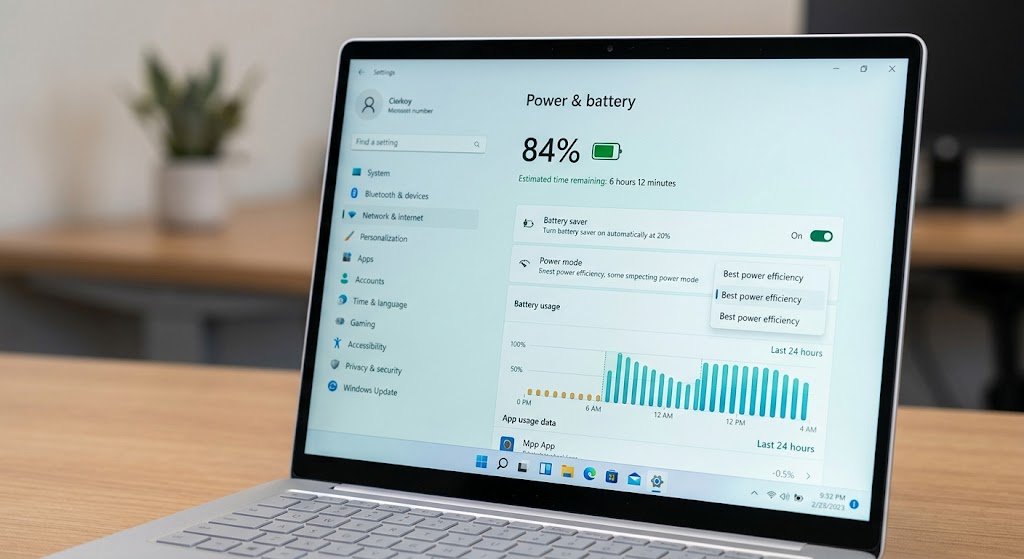
Excessive heat forces internal fans to spin at maximum RPMs constantly, rapidly exhausting battery reserves. Dust buildup on internal heatsinks also causes thermal throttling, which forces the CPU to work harder and consume more watts per task. Cleaning the dust out of your vents and cooling fans restores quiet operation and extends battery runtimes.
2. Disconnect High-Power Peripherals
Unplug external USB hard drives, RGB mice, audio interfaces, and external display adapters when running on battery power. External devices draw operating power directly from your laptop’s system bus.
Frequently Asked Questions (FAQs)
Why is my laptop battery draining so fast all of a sudden?
A sudden spike in battery consumption is usually caused by a recent system update, corrupt graphics/chipset drivers, a rogue background process using high CPU resources, or a stuck background indexer (such as Windows Search or Spotlight).
Does leaving my laptop plugged in all the time ruin the battery?
Modern laptops use smart charging circuits that stop charging once the battery reaches 100%. However, keeping a lithium-ion battery at maximum charge and high temperature continuously speeds up capacity degradation. Most modern brands (Asus, Lenovo, Dell, HP, Apple) offer battery limit software to cap maximum charging at 80% for prolonged desktop use.
Can calibrating my laptop battery restore lost capacity?
No. Battery calibration resets the digital gauge accuracy so your OS correctly reports remaining power percentage. It cannot chemically restore worn-out battery cells.
Final Thoughts
Knowing how to fix laptop battery drain requires a systematic approach: start by assessing physical battery health, calibrate the charge sensor, streamline background applications, and lower display demands. By applying these settings and calibration hacks, you can prevent unexpected shutdowns and get maximum performance out of every charge cycle.
Leave a Reply