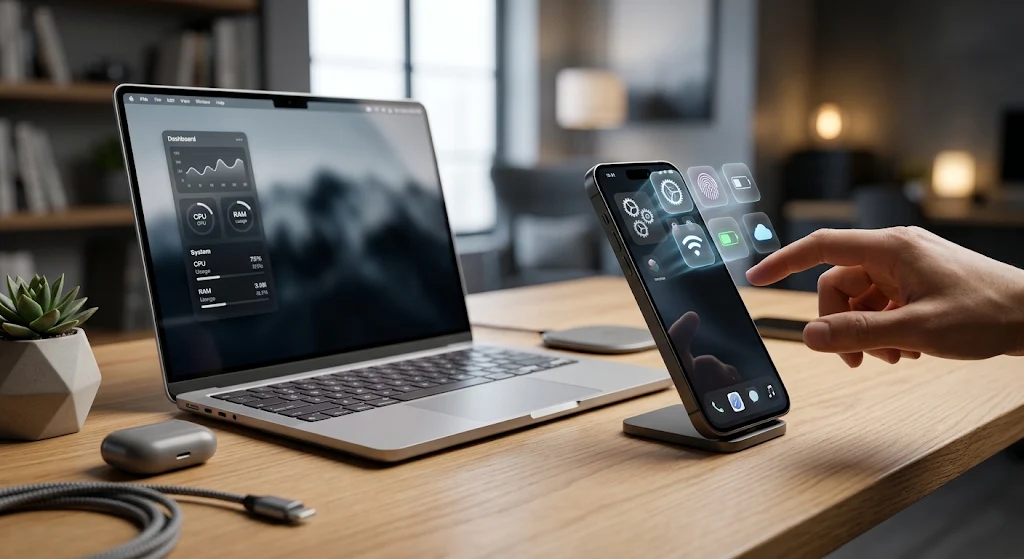
Modern smartphones, laptops, and smart home hubs are packed with advanced computing power, yet most users only utilize a fraction of their capabilities. Manufacturers routinely pack operating systems like iOS, Android, macOS, and Windows with secret shortcuts, convenience tools, and deep privacy toggles designed to optimize performance. Unlocking these hidden features transforms your daily interaction with technology, streamlining workflows and eliminating common friction points https://fibozin.com.
Whether you want to speed up daily navigation, protect your personal data, or turn your phone into a precision tool, digging beneath default menus unlocks remarkable functionality. Exploring hidden tech features allows you to customize your devices to work for you—rather than settled for factory defaults.
Key Takeaways
- Instant Accessibility Shortcuts: Simple gestures, back-taps, and hidden trackpad modes speed up everyday typing and navigation.
- Granular Privacy & Security Controls: Off-grid location tracking, notification masking, and built-in hardware controls protect personal data.
- Built-in Power Tools: Native features replace the need for third-party scanning, ambient sound, or offline translation apps.
- Cross-Device Continuity: Hidden sync options seamlessly connect mobile devices with desktop ecosystems for friction-free multitasking.
1. Secret Smartphone Tricks for iOS & Android
Smartphones contain dozens of buried menus designed to reduce screen clutter and improve ergonomics.
Back Tap & Gesture Controls
Both Apple and Android offer hardware-level gesture shortcuts. On iOS, navigate to Settings > Accessibility > Touch > Back Tap. You can configure double- or triple-taps on the physical back of your iPhone to trigger actions like taking a screenshot, toggling the flashlight, or running custom shortcuts. Android users can activate similar gesture controls under Settings > System > Gestures to quickly pull down the notification shade or open favorite apps without reaching across large screens https://fibozin.com.
Precision Text Editing with Spacebar Trackpad
Moving a cursor to fix a typo inside a long message often leads to missed taps. Instead of tapping the screen directly, press and hold the spacebar on either iOS or Gboard (Android). Your key layout turns into an interactive trackpad, letting you slide your finger smoothly to place the cursor exactly where needed.
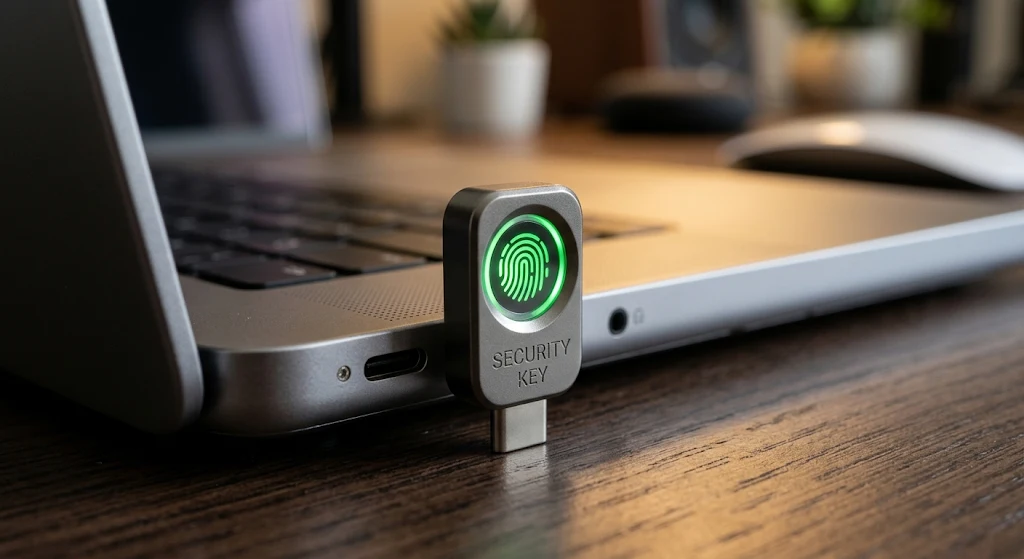
2. Windows & macOS Power Settings You Should Toggle
Desktop operating systems harbor deep productivity tools that streamline file management and background processing.
Multi-Clipboard & Clipboard History
Copying text usually overwrites whatever was stored prior. Enabling Clipboard History in Windows (Settings > System > Clipboard) allows you to press Win + V to bring up a historical log of text, code snippets, and images copied throughout your session. Mac users can achieve similar unified workflows by configuring Universal Clipboard to sync clipboard content instantaneously between Mac, iPad, and iPhone https://www.atlassian.com.
Background Ambient Noise Generators
Focusing in noisy environments often requires third-party white noise apps. macOS includes native background audio directly within its system settings. Go to System Settings > Accessibility > Audio > Background Sounds to stream built-in rain, ocean, or neutral noise without downloading extra software or using external streaming services.
3. Privacy Controls & Security Settings
Protecting your digital footprint does not require complex IT knowledge—just a few quick menu adjustments.
Fuzzy Location Masking
Not every application needs your exact street address to function properly. Both iOS and Android permit precise versus approximate location sharing. Inside your device’s location permissions, toggle off “Precise Location” for weather, shopping, or news apps so they receive only your general neighborhood radius, preserving privacy while keeping localized results accurate.
[Internal Link: Insert relevant internal URL here with anchor text]
Notification Masking on Lock Screens
Prevent sensitive messages or two-factor authentication codes from being visible to bystanders. By setting notification previews to show “Only When Unlocked” (Settings > Notifications), your phone keeps incoming content hidden until biometrics (Face ID or fingerprint scan) authenticate your identity.
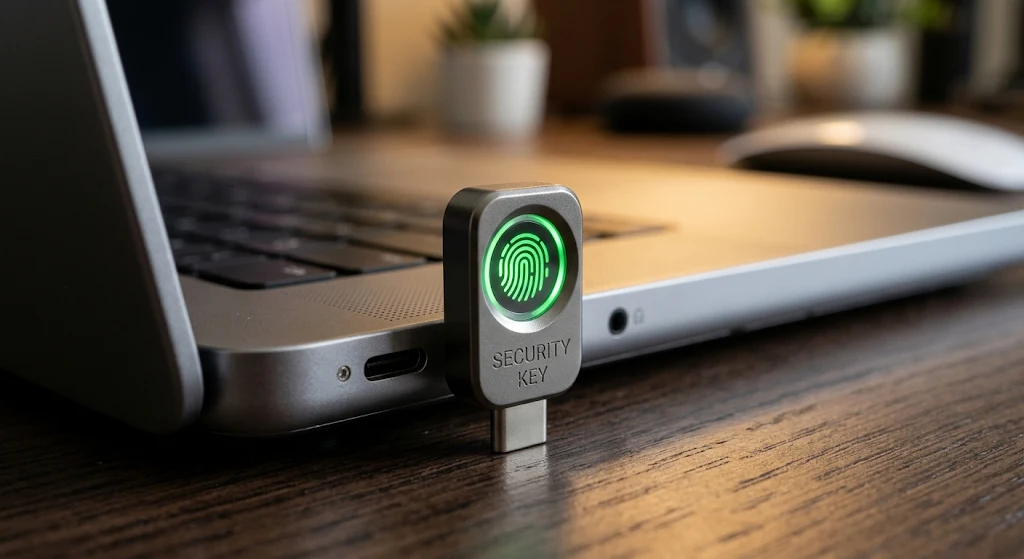
4. Hardware Utilities Built into Everyday Devices
Your smartphone hardware contains integrated sensors capable of performing real-world tasks beyond basic app hosting.
- Document Scanning in Native Apps: Avoid downloading third-party scanning apps filled with ads. iOS Notes (Camera icon > Scan Documents) and Google Drive on Android (Scan button) use camera sensors to automatically flatten paper edges, remove glare, and output multi-page PDFs.
- Offline Ambient Audio Identification: Android devices feature “Now Playing,” which continuously identifies ambient music without sending voice recordings to external cloud servers. Apple integrates Shazam directly into the iOS Control Center for single-tap audio identification.
[External Link: Insert high-authority external URL here with anchor text]

Master Your Hardware Potential
Uncovering hidden tech features transforms standard gadgets into tailored productivity hubs. Taking a few minutes to adjust hidden submenus, configure native shortcuts, and tweak privacy controls removes daily friction while keeping personal data secure. Revisit device settings after major software updates to uncover new toggles, ensuring your hardware consistently operates at peak efficiency.
Frequently Asked Questions
What are hidden tech features?
Hidden tech features are built-in settings, gestures, or shortcuts embedded within device operating systems that are not prominently displayed in basic setup guides or home screens.
Will changing these hidden settings drain my device battery?
Most hidden features, such as spacebar trackpad modes, clipboard history, and back-tap shortcuts, use minimal system resources. However, continuous background tools like real-time ambient noise playback or constant location polling can slightly impact battery runtime.
How do I find new hidden tech features after an OS update?
Major operating system updates routinely introduce new toggles. Reviewing system changelogs, exploring updated Accessibility submenus, and checking privacy settings after each system update helps you discover newly added features.
Leave a Reply