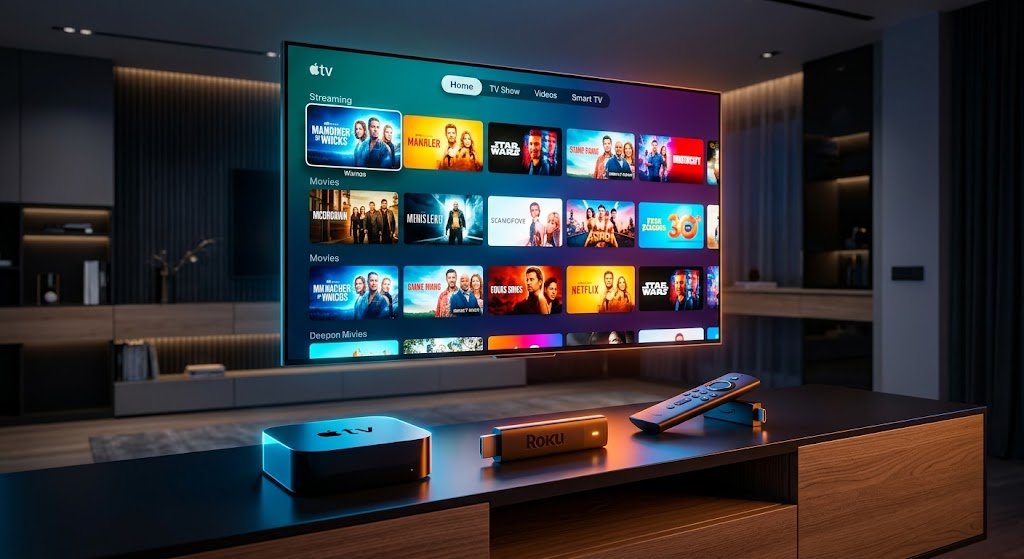
Introduction
Streaming media players have replaced traditional cable boxes in millions of households, delivering endless movies and shows at the press of a button. However, constant app crashes, audio desynchronization, low-resolution buffering, and frozen home screens can ruin movie night. Whether you rely on an Amazon Fire TV Stick, a Roku Ultra, or an Apple TV 4K, hardware and software bugs are bound to surface over time https://fibozin.com.
Learning the most effective troubleshooting methods for fixing streaming device glitches allows you to restore smooth 4K playback and resolve system freezes without performing unnecessary factory resets. This comprehensive guide breaks down the most common streaming bugs across Roku, Apple TV, and Fire TV platforms and provides expert-tested hacks to get your home entertainment system running smoothly again.
Key Takeaways
- Power Cycle Correctly: Unplugging your streaming device from both the power outlet and HDMI port for 60 seconds clears system RAM cache and fixes 80% of temporary bugs.
- Clear Cache & Data: Amazon Fire Stick and Android TV devices accumulate app cache that degrades performance; clearing cache routinely prevents UI sluggishness.
- Check Wi-Fi Frequency: Force your streaming player to connect to the 5GHz or 6GHz Wi-Fi band to avoid 2.4GHz network congestion and buffering.
- Restart Remotes: Unresponsive remotes often require simple button-combination resets or Bluetooth re-pairing rather than full replacements.
- Match Frame Rate & Resolution: Enable “Match Dynamic Range” and “Match Frame Rate” settings to eliminate stutter and black-screen handshakes when playing HDR content.
Step 1: Solving Network Buffering and Connection Drops
Frequent buffering wheel pauses, pixelated video feeds, and dropped Wi-Fi connections usually stem from localized network bottlenecks or HDMI port signal interference.
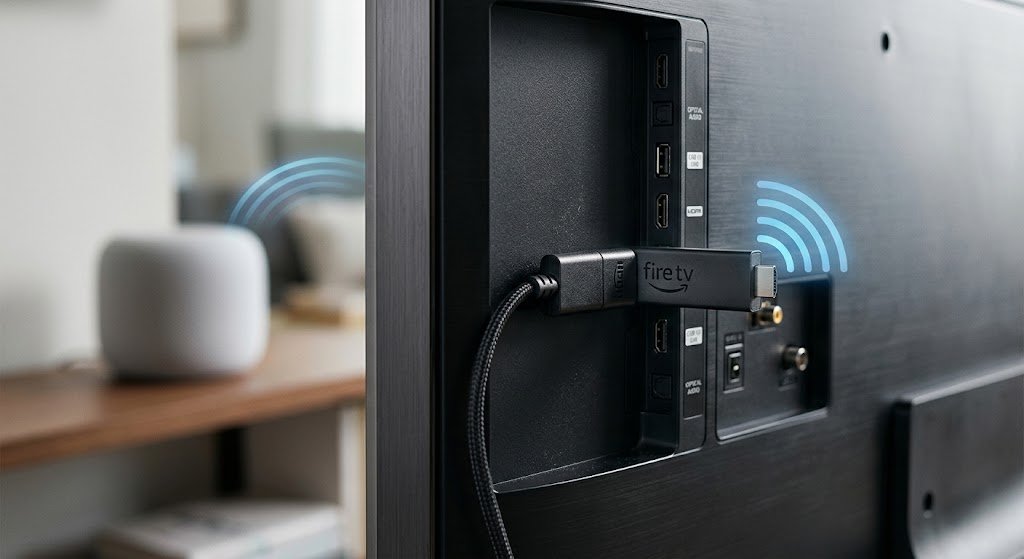
1. Separate 2.4GHz and 5GHz Wi-Fi Bands
Most streaming sticks automatically pick whichever Wi-Fi frequency signal reaches them first. However, the 2.4GHz band is prone to interference from Bluetooth devices, microwaves, and neighboring networks.
- Access your router settings and split your network into two distinct SSIDs (e.g.,
HomeNetwork_2.4GandHomeNetwork_5G). - Manually connect your streaming device exclusively to the 5GHz band for higher throughput and reduced jitter.
2. Use an HDMI Extender Dongle
Plugging a streaming stick directly into the back panel of a TV creates a tight metal sandwich that blocks Wi-Fi radio frequencies.
- Use a 4-inch to 12-inch HDMI extension cable to position the device away from the rear casing of the television.
- This simple adjustment drastically reduces electromagnetic interference (EMI) and boosts Wi-Fi signal reception.
[Internal Link: Explore our full guide on optimizing home Wi-Fi speeds for 4K video streaming]
Step 2: Fixing Platform-Specific Glitches (Roku, Apple TV, Fire Stick)
While many troubleshooting steps apply universally, each major operating system has unique system menus and hardware quirks.
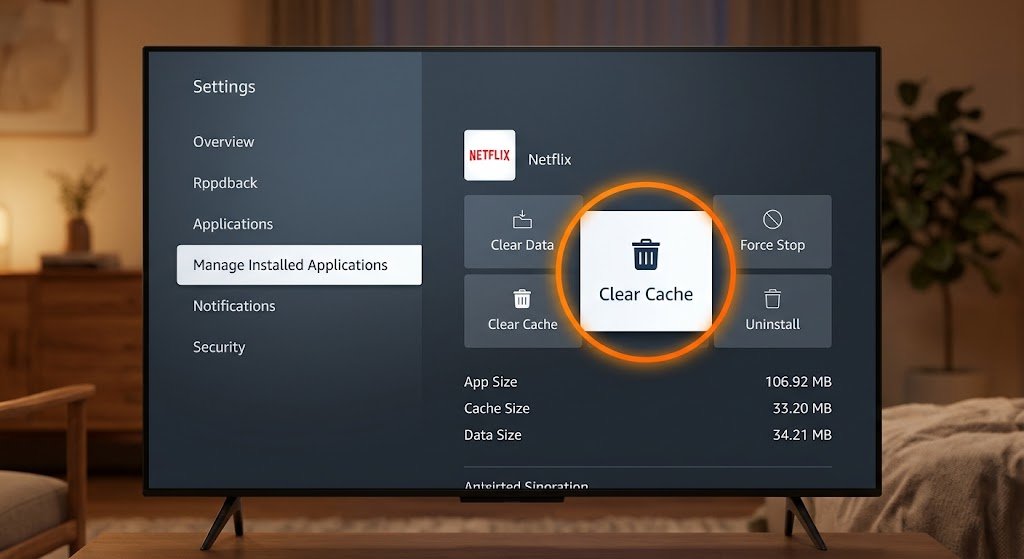
Amazon Fire Stick Hacks: Clear System Cache and Free Storage
Fire OS is built on Android, meaning apps continuously write cache files that eventually slow down the system interface.
- Clear App Cache: Navigate to Settings > Applications > Manage Installed Applications, select problematic streaming apps (e.g., Netflix, Prime Video), and click Clear Cache.
- Fix Unresponsive Remote: Hold the Left + Menu + Back buttons simultaneously for 12 seconds to unpair and reset a frozen Fire TV Voice Remote.
Roku Hacks: Secret System Secret Codes & Remote Re-Pairing
Roku devices are lightweight, but system updates can occasionally break UI animation scaling or cause screen flickering.
- Secret Reboot Code: If the UI freezes completely, press Home (5 times) + Up (1 time) + Rewind (2 times) + Fast Forward (2 times) on your remote. The Roku will cycle power automatically.
- Disable Secret Bandwidth Saver: Go to Settings > Network > Bandwidth Saver and turn it Off to prevent Roku from unexpectedly dropping video streams after prolonged playback.
Apple TV Hacks: Video Handshake and Force Quit Tricks
Apple TV’s tvOS is exceptionally fast, but frame-rate switching and Dolby Vision handshakes can cause brief black screens or audio delay Wikipedia.
- Force Quit Frozen Apps: Double-click the TV/Control Center button on the Siri Remote to bring up the App Switcher, then swipe up on any frozen streaming app to force close it.
- Enable Dynamic Range Matching: Go to Settings > Video and Audio > Match Content and turn Match Dynamic Range and Match Frame Rate to On. This prevents screen stuttering when switching between SDR and HDR 4K streams.
[External Link: Visit Apple Support’s official page on resolving video playback issues on Apple TV]
Step 3: Resolving Audio Desync and Black Screen Issues
Audio output lagging behind actor dialogue or an entirely black TV display usually indicates an HDMI HDCP copy-protection mismatch or improper audio format decoding.
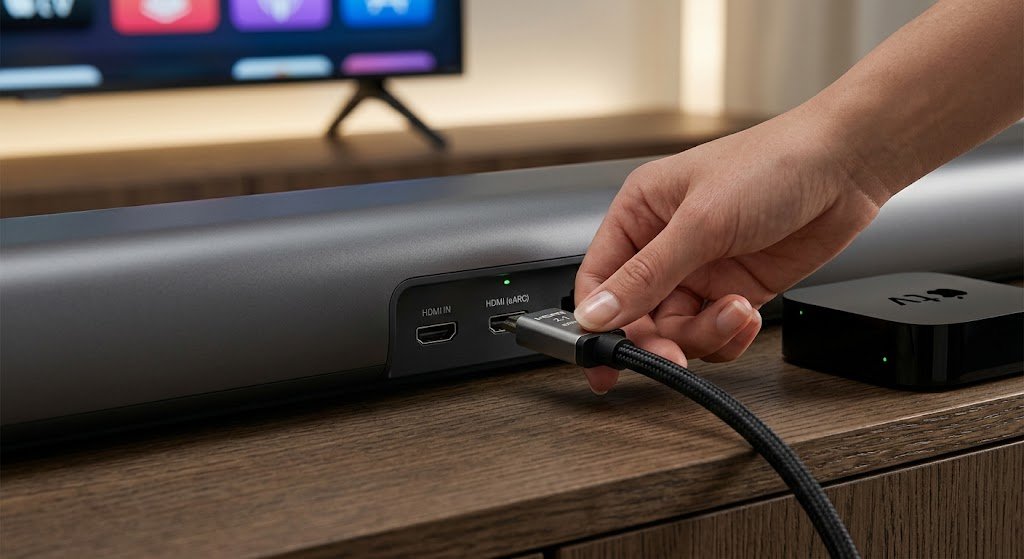
1. Perform a Full HDMI Handshake Reset
- Disconnect the power cord from the streaming player and the TV.
- Unplug the HDMI cable from both ends.
- Wait 60 seconds to allow all capacitor charge to dissipate.
- Plug the HDMI cable back in securely before reconnecting power to the wall outlets.
2. Adjust Audio Pass-Through Settings
If dialogue does not align with lip movement when using a soundbar or AV receiver:
- Open your streaming device’s sound settings and switch audio output from Auto / Passthrough to Stereo / PCM temporarily to diagnose whether the receiver’s surround decoder is introducing latency.
- Adjust the Audio Sync / Dialogue Enhancement slider inside your TV’s sound settings menu.
Frequently Asked Questions (FAQs)
Why does my streaming device keep restarting on its own?
Self-rebooting usually occurs when the streaming stick is powered via the TV’s USB port rather than a wall outlet. TV USB ports often fail to supply consistent voltage, causing the device to crash during resource-intensive 4K playback. Always use the included wall power adapter.
Will clearing cache delete my login credentials on Fire Stick or Roku?
No. Clearing Cache only deletes temporary operational files. However, clicking Clear Data will reset the application completely, requiring you to enter your username and password again.
Why is my streaming device screen black but audio still plays?
This indicates an HDMI HDCP protocol failure. Try switching the streaming device to a different HDMI port on your TV, replacing the HDMI cable with a certified High-Speed HDMI 2.1 cable, or adjusting your streaming player’s display resolution setting down from 4K to 1080p temporarily.
Final Thoughts
Successfully fixing streaming device glitches comes down to systematic troubleshooting—from managing home Wi-Fi bands and clearing software cache to performing HDMI handshake resets. By leveraging platform-specific shortcuts on your Roku, Apple TV, or Fire Stick, you can eliminate constant buffering and software freezes, ensuring your home theater setup delivers seamless performance every time.
Leave a Reply