
Introduction:
Few things match the frustration of a smartphone that refuses to cooperate. Whether your battery plunges by 20% in an hour, your Wi-Fi keeps disconnecting during an important call, or a critical app freezes midway, mobile glitches disrupt productivity and daily communication.
Thankfully, you do not need to take a costly trip to a repair shop to fix most smartphone issues. Most software slowdowns, battery drains, and connectivity hiccups stem from basic background processes, cache bloat, or misconfigured settings. By applying 7 quick fixes for Android and iPhone, you can resolve the vast majority of mobile headaches independently in under five minutes.
Key Takeaways
- Universal Reset: A simple reboot or forced restart clears temporary RAM and fixes system bugs on both platforms.
- Network Refresh: Toggling Airplane Mode or resetting network settings resolves Wi-Fi and Cellular signal drops instantly.
- Battery & Heat Control: Managing background app refreshes and screen brightness preserves long-term battery health and prevents thermal throttling.
- Storage Optimization: Clearing app cache files and offloading unused applications restores original device speed.
- Port Cleaning: Removing dust from physical charging ports often fixes non-charging issues without requiring new hardware.
Introduction to Mobile Troubleshooting
Both Apple’s iOS and Google’s Android operating systems are designed with high levels of stability, yet both platforms accumulate software clutter over time. From corrupt app caches to misbehaved background tasks, everyday use inevitably introduces technical hiccups. Understanding these standard system behaviors allows you to maintain optimal performance. Utilizing systematic 7 quick fixes for Android and iPhone ensures your device stays fast, responsive, and reliable.
1. Perform a Forced Restart to Clear System RAM
When your phone freezes or responds sluggishly, a standard power-off sequence might not work. Performing a forced hard reboot cuts power to temporary memory, flushing out frozen processes without wiping your internal storage https://fibozin.com.
For iPhone (8 and Newer):
- Press and quickly release the Volume Up button.
- Press and quickly release the Volume Down button.
- Press and hold the Side Button until the Apple logo appears.
For Android:
- Press and hold both the Power Button and Volume Down Button simultaneously for 7 to 10 seconds.
- Release when the screen turns black and the device brand logo reappears.
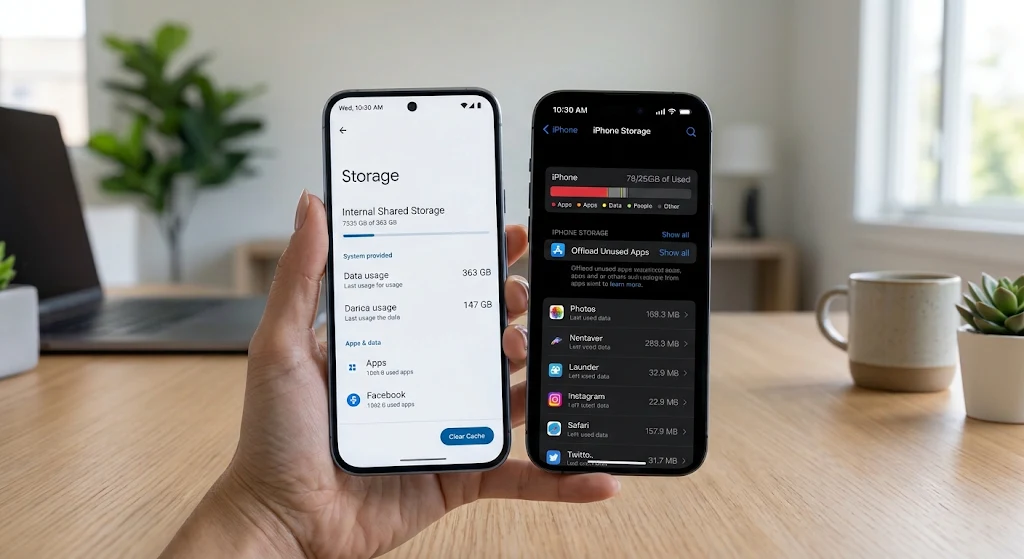
2. Clear App Cache and System Junk
Accumulating cached files helps applications load faster initially, but old or corrupted cache data can cause apps to freeze, crash, or consume excessive system resources.
┌─────────────────────────────────────────────────────────────┐
│               App Cache Cleaning Workflow                   │
├──────────────────────────────┬──────────────────────────────┤
│ Android (Per App)            │ iPhone (App Offloading)      │
├──────────────────────────────┼──────────────────────────────┤
│ 1. Go to Settings > Apps     │ 1. Go to Settings > General  │
│ 2. Select Target App         │ 2. Tap iPhone Storage        │
│ 3. Storage & Cache           │ 3. Select App                │
│ 4. Tap "Clear Cache"         │ 4. Tap "Offload App"         │
└──────────────────────────────┴──────────────────────────────┘
- Android: Open Settings > Apps > Select problematic app > Storage & Cache > Clear Cache.
- iPhone: iOS handles system cache automatically, but you can offload unused apps via Settings > General > iPhone Storage > Offload App. This frees up storage space while retaining app data.
[Internal Link: Read our comprehensive guide on how to clear system cache on all smartphones]
[Image Placeholder 1]
3. Toggle Airplane Mode to Fix Connectivity Drops
If your phone displays “No Service,” drops mobile data connections, or refuses to connect to a known Wi-Fi router, refreshing your network modems can instantly re-establish connection https://fibozin.com.
- Swipe down to open the Quick Settings (Android) or Control Center (iPhone).
- Tap the Airplane Mode icon to turn it ON.
- Wait 15 to 30 seconds to let all wireless radios disconnect completely.
- Tap the Airplane Mode icon again to turn it OFF.
This forces your phone to re-scan for nearby cellular towers and Wi-Fi networks.
4. Tame Background Battery Drainers
Rapid battery consumption is frequently caused by power-hungry apps running continuously in the background. Limiting background access extends daily usage significantly.
- Disable Background App Refresh (iPhone): Go to Settings > General > Background App Refresh and turn off access for non-essential applications.
- Restrict Background Battery Usage (Android): Go to Settings > Battery > Battery Usage. Tap heavy battery consumer apps and set their battery usage setting to Restricted.
For additional technical guidelines on extending overall battery lifespan, review [External Link: Apple’s official battery optimization and health documentation].
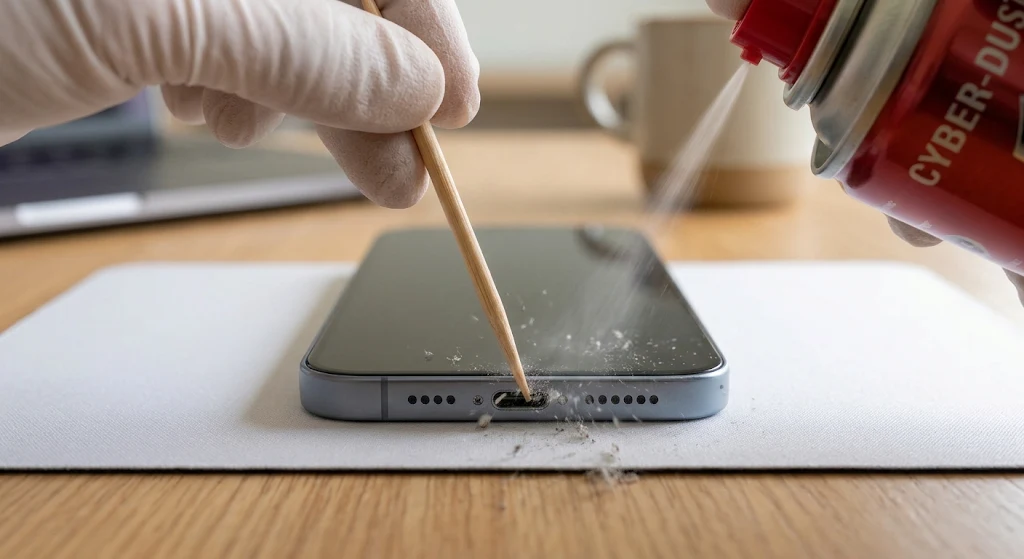
5. Safely Clean the Charging Port
If your device refuses to charge or connects intermittently when plugged in, a dirty charging port is often the culprit rather than a broken battery. Lint and dust pack tightly into Lightning or USB-C ports over time, preventing the cable pins from making clean contact.
- Power off your phone completely.
- Use a wooden or plastic toothpick under bright light to gently pick out trapped debris. Never use metal objects like needles or paperclips.
- Use a brief blast of compressed air to remove remaining particles.
[Image Placeholder 2]
6. Reset Network Settings for Persistent Cellular & Bluetooth Errors
When basic network toggles fail to fix dropped calls, weak Bluetooth pairings, or broken Wi-Fi connections, resetting system-level network configurations resolves underlying protocol conflicts https://www.atlassian.com.
Note: Resetting network settings deletes saved Wi-Fi passwords, Bluetooth devices, and preferred VPN configurations. Ensure you know your network passwords before proceeding.
- On iPhone: Navigate to Settings > General > Transfer or Reset iPhone > Reset > Reset Network Settings.
- On Android: Navigate to Settings > System > Reset Options > Reset Wi-Fi, Mobile & Bluetooth.
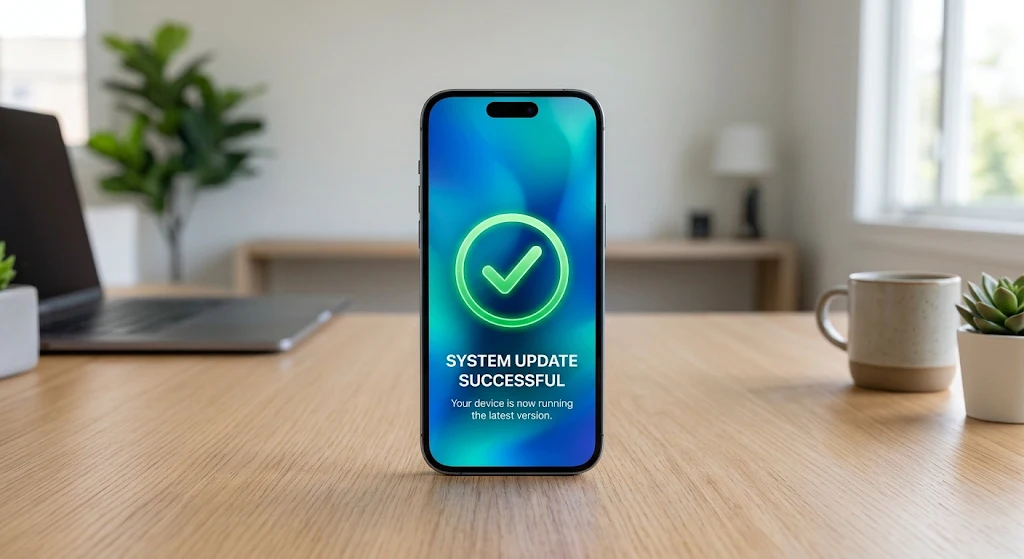
7. Update Operating System and Core Apps
Running outdated software causes system instability and exposes your phone to security vulnerabilities. Developers release regular patches specifically designed to fix memory leaks and known OS bugs.
- Check for OS Updates on iPhone: Settings > General > Software Update.
- Check for OS Updates on Android: Settings > System > System Update.
- Update Apps: Open the App Store (iOS) or Google Play Store (Android), access your profile, and select Update All.
[Image Placeholder 3]
Summary of 7 Quick Fixes for Android and iPhone
Applying these simple troubleshooting routines saves time, protects device hardware, and restores system performance. Keep this handy reference table available whenever your mobile device acts up:
| Issue | Primary Cause | Recommended Quick Fix |
| Frozen Screen / Unresponsive App | RAM clogging, system freeze | Hard forced reboot |
| App Crashes & Slowdowns | Corrupted temporary cache | Clear app cache / Offload app |
| “No Service” / Wi-Fi Drops | Misbehaving wireless modem | Toggle Airplane mode for 30s |
| Rapid Battery Drain | Unrestricted background tasks | Restrict background app refresh |
| Device Not Charging | Port blockage or debris | Clean port gently with non-metal tool |
| Persistent Bluetooth/Wi-Fi Errors | Corrupted network config | Reset Network Settings |
| Random Reboots & Bugs | Outdated operating system | Install latest OS & app updates |
Frequently Asked Questions (FAQs)
What should I do if the 7 quick fixes for Android and iPhone do not solve my issue?
If basic software troubleshooting does not resolve the glitch, the problem may stem from a failing physical component, such as a degraded battery or a damaged motherboard. Back up your device data to cloud storage and consult an authorized service center or technician for diagnostic inspection.
Will clearing the cache on my phone delete my photos or personal files?
No. Clearing app cache only deletes temporary system files used to speed up application loading times. Your personal documents, photos, accounts, and saved messages remain unaffected.
How often should I restart my smartphone?
Restarting your device once a week is a solid maintenance habit. A weekly reboot clears background memory, terminates rogue processes, and helps maintain peak operating speed.
Leave a Reply