Introduction
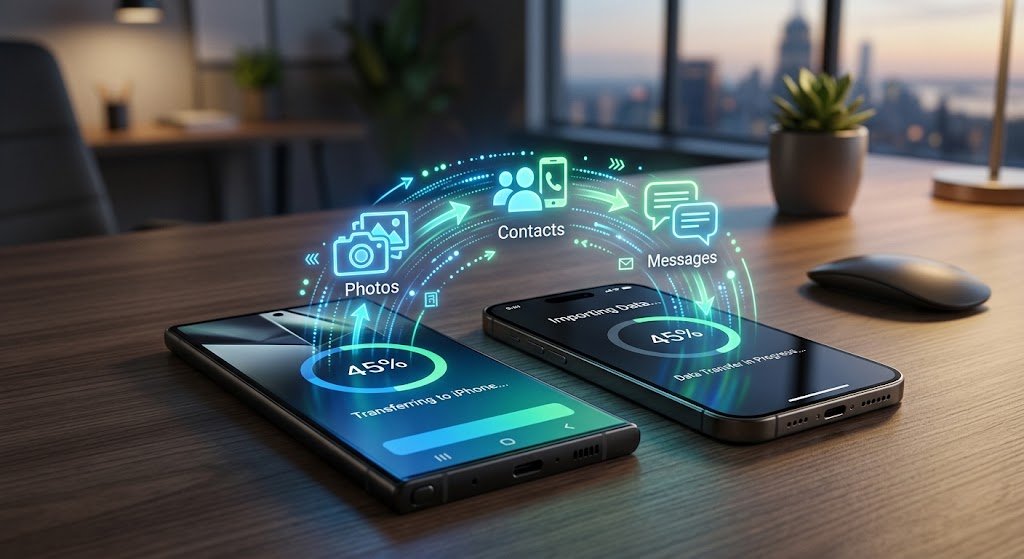
Switching operating systems—whether migrating from Android to iOS or making the jump from iPhone to Android—can feel daunting https://fibozin.com. The primary concern for most users is ensuring that precious memories, critical contact lists, WhatsApp message histories, and app data survive the transition intact. Fortunately, cross-platform migration utilities have evolved significantly, making cross-OS data migration smoother than ever.
Knowing safely back up and transfer data between Android and iPhone prevents accidental file deletion, corrupted database transfers, and lost media files. This guide details official transfer utilities, secure cloud backup methodologies, and wired connection hacks to execute a complete, zero-data-loss migration between Android and iOS devices.
Key Takeaways
- Always Back Up First: Create a complete local or cloud backup for both devices before starting any migration process to prevent catastrophic data loss.
- Use Official Migration Tools: Utilize Apple’s Move to iOS app for Android-to-iPhone transfers, or Google’s Android Switch app (or Samsung Smart Switch) for iPhone-to-Android transfers.
- Deregister Proprietary Services: Turn off iMessage and FaceTime when leaving iPhone, or disable RCS Chat features when leaving Android, to avoid missed SMS messages.
- Leverage Direct Cable Connections: Physical USB-C to Lightning or USB-C to USB-C cable transfers are significantly faster and more reliable than Wi-Fi transfers for large photo and video libraries.
Pre-Migration Checklist: Preparing Your Devices
Before initiating any cross-platform file transfer, follow these mandatory preparatory steps:
- Fully Charge Both Devices: Ensure both smartphones have at least 80% battery life, or keep them plugged into power during the transfer.
- Update Operating Systems: Update both devices to their latest available OS versions to ensure framework compatibility.
- Connect to Stable Wi-Fi: Ensure both phones are on the same secure high-speed Wi-Fi network.
- Disable Chat Encryption Lockouts: Deregister services that lock messages to specific hardware. Turn off iMessage under Settings > Messages on iOS if moving to Android, or turn off RCS chats in Google Messages if switching to iPhone.
[Internal Link: Check out our complete smartphone security checklist before wiping old devices]
Step 1: Transfer Data from Android to iPhone
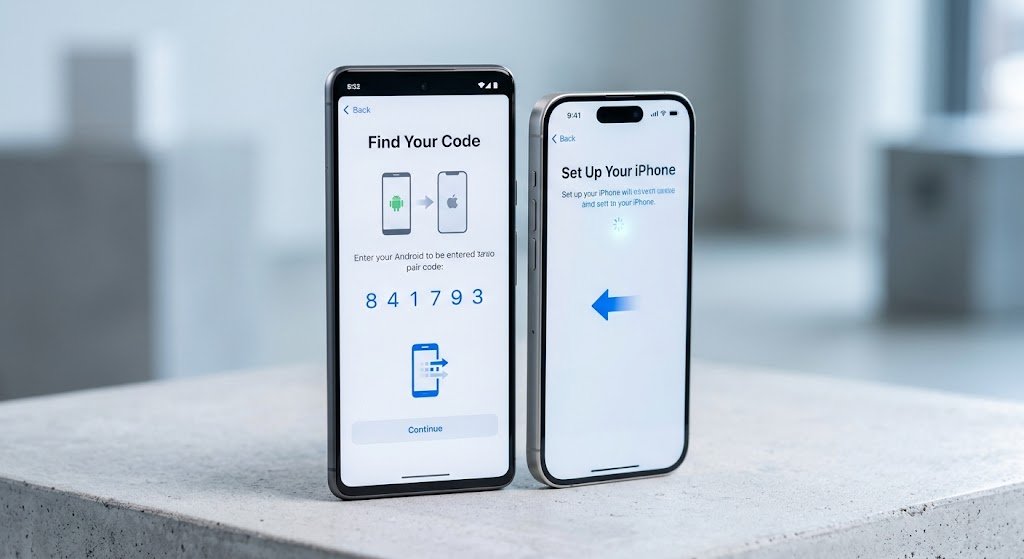
When moving from an Android device to a new iPhone, Apple provides an official utility called Move to iOS.
How to Use Move to iOS:
- Turn on your new iPhone and begin the initial setup process.
- When you reach the Apps & Data screen, select Move Data from Android.
- Download and open the Move to iOS app on your Android smartphone from the Google Play Store.
- Accept the terms, grant necessary storage and contact permissions, and tap Continue.
- Enter the unique 6-digit or 10-digit security code generated on your iPhone screen into your Android device.
- Select the content categories you want to transfer (Contacts, Message History, Camera Photos/Videos, WhatsApp Data, Google Account credentials, and Web Bookmarks).
- Keep both phones side-by-side until the loading bar on your iPhone completes.
Step 2: Transfer Data from iPhone to Android
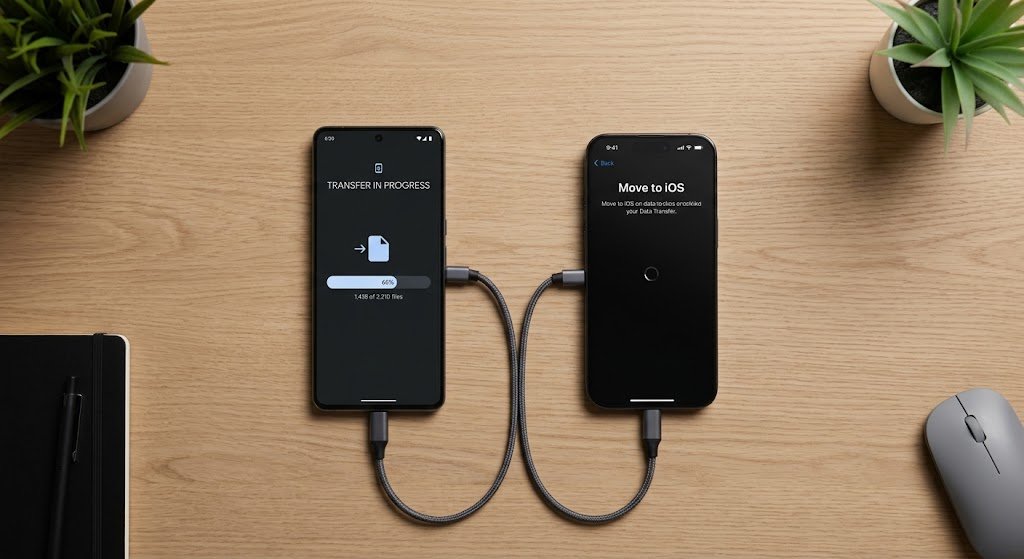
Migrating from an iPhone to an Android ecosystem can be accomplished using Google’s Android Switch app or device-specific manufacturer tools like Samsung Smart Switch https://www.atlassian.com.
Method A: Wired Cable Transfer (Fastest & Most Reliable)
- Turn on your new Android device and begin initial setup.
- When prompted to copy data, select Cable Transfer.
- Connect both phones directly using a USB-C to Lightning cable (or a USB-C to USB-C cable for iPhone 15 models and newer).
- Tap Trust on your iPhone screen when prompted.
- Select the specific data categories—including photos, device notes, call logs, contacts, and custom ringtones—and begin the transfer.
Method B: Google Drive Cloud Backup
If you lack a physical cable connection, perform a wireless cloud migration:
- Download Google Drive on your iPhone from the App Store and log in with your primary Google Account.
- Go to Settings > Backup.
- Select Contacts, Calendar Events, and Photos & Videos, then tap Start Backup.
- Once completed, log into the same Google Account on your new Android phone; all synced data will automatically populate native Android apps.
[External Link: Read Google’s official Android Switch migration documentation for full setup guides]
Step 3: Backing Up and Transferring WhatsApp Chats Across OS
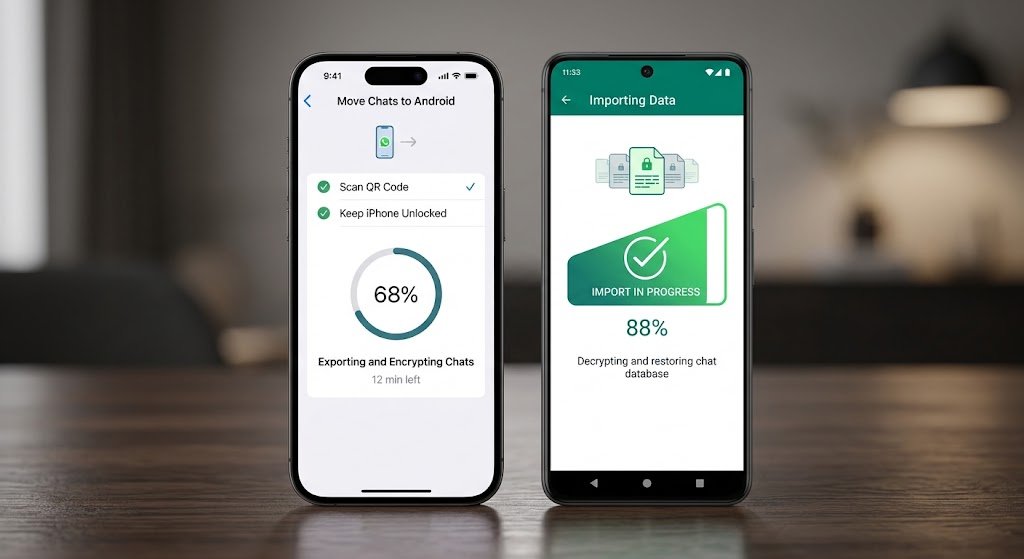
Historically, migrating encrypted WhatsApp database histories across operating systems was difficult without paid third-party software. Today, native end-to-end encrypted transfer options exist.
Moving WhatsApp from iPhone to Android:
- During initial setup of your Android device, connect your iPhone via cable.
- When prompted, scan the QR code displayed on the Android screen using your iPhone camera.
- Open WhatsApp on iPhone, navigate to Settings > Chats > Move Chats to Android, and tap Start.
Moving WhatsApp from Android to iPhone:
- Select WhatsApp as a category inside the Move to iOS app during the initial Android-to-iPhone migration process.
- Open WhatsApp on your new iPhone, sign in using the exact same mobile phone number, and tap Start to extract the transferred local backup.
Frequently Asked Questions (FAQs)
Will my paid apps transfer between Android and iPhone?
No. Google Play Store licenses and Apple App Store licenses operate on independent billing platforms. While free applications (like Spotify, Instagram, or Netflix) simply require logging into your existing account on the new platform, paid single-purchase apps or specific platform subscriptions must be repurchased on the new OS.
Can I transfer data between Android and iPhone after setup?
If you skip the initial setup screen on either OS, native system migration tools (like Move to iOS or Android’s setup wizard) cannot be triggered without factory resetting the target phone. However, you can still sync contacts, calendars, and media files post-setup using cloud accounts (Google Drive, iCloud, or Microsoft OneDrive).
What is the safest way to back up photos before switching devices?
The safest method is uploading full-resolution originals to cloud platforms like Google Photos or OneDrive, or copying media manually to a computer or external SSD via a direct USB connection prior to performing device migrations.
Final Thoughts
Mastering how to safely back up and transfer data between Android and iPhone ensures that changing smartphone operating systems is a seamless, stress-free process. By utilizing official transfer applications, securing your accounts with cloud backups, and leveraging direct wired cable transfers, you can migrate all essential media, messages, and personal files securely.
Leave a Reply