
Introduction
Smart security cameras provide immense peace of mind by allowing homeowners to monitor property in real time from anywhere in the world https://fibozin.com. However, as internet-connected Internet of Things (IoT) devices, IP cameras are vulnerable to cyber threats if left on default configurations. Unsecured camera streams can be intercepted through credential stuffing, unencrypted video transmissions, or outdated firmware exploits.
Understanding how to secure your smart home security cameras against unauthorized access is essential to keeping your home private and your local network protected. By enforcing robust credential management, isolating your IoT devices on dedicated Wi-Fi subnets, and enabling advanced encryption, you can completely lock down your cameras against malicious hackers.
Key Takeaways
- Segment Your Wi-Fi Network: Create an isolated Guest or IoT VLAN on your router to keep smart security cameras separated from your personal laptops and smartphones.
- Mandate Two-Factor Authentication (2FA): Always enforce 2FA/MFA on your camera account to block credential stuffing attacks, ideally using authenticator apps over SMS.
- Eliminate Default Credentials: Change manufacturer default admin usernames and passwords immediately during setup.
- Keep Firmware Updated: Enable automatic firmware updates on all cameras and companion apps to patch zero-day vulnerabilities promptly.
- Disable UPnP and Port Forwarding: Turn off Universal Plug and Play (UPnP) on your router to prevent cameras from opening unmonitored ports to the public internet.
Step 1: Secure Your Home Wi-Fi Router and Network Architecture
Your home router serves as the first line of defense for every connected smart camera. Securing the underlying network prevents attackers from intercepting camera traffic or utilizing compromised cameras as a bridge into your private personal files.

1. Create a Dedicated IoT Network (VLAN Segmentation)
Most modern Wi-Fi 6 and Mesh routers allow you to broadcast a separate Guest Network or a dedicated IoT Subnet.
- Connect all IP cameras exclusively to this segregated guest network.
- Ensure the “Allow access to local network” setting remains disabled.
- Why it matters: If a camera vulnerability is ever exploited, the attacker remains trapped on the isolated guest network, unable to pivot to your PC, banking sessions, or personal storage devices.
2. Upgrade to Modern Wireless Encryption
Verify that your router uses WPA3-Personal encryption or, at a minimum, WPA2-AES. Avoid outdated WEP or WPA configurations, which can be cracked in minutes using automated brute-force tools https://www.atlassian.com.
3. Disable UPnP and Remote Router Management
Disable Universal Plug and Play (UPnP) inside your router’s administrative settings. UPnP allows smart cameras to bypass router firewalls automatically by opening public ports—exposing live camera feeds directly to internet scanners.
[Internal Link: Read our step-by-step guide on setting up a secure home network for IoT devices]
Step 2: Implement Strict Account and Credential Security
The majority of camera breaches occur not through sophisticated coding exploits, but through weak or reused login credentials.
1. Replace Default Passwords Immediately
Factory default credentials (like admin/admin or 12345) are publicly listed in online manufacturer databases. Change the default admin password on both the camera hardware and its companion cloud account during initial configuration. Use a unique, complex passphrase of at least 16 characters generated by a password manager.
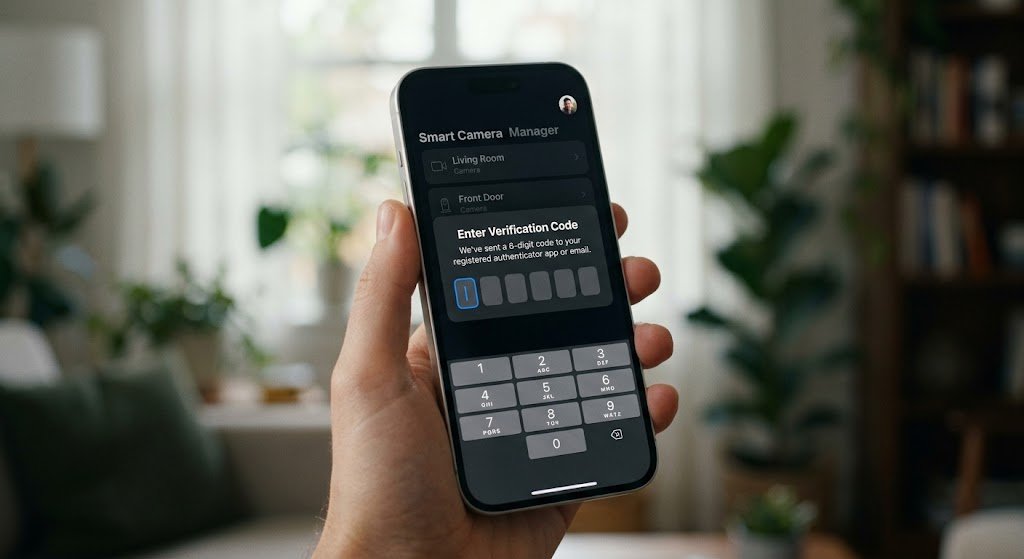
2. Enable Multi-Factor Authentication (MFA / 2FA)
Always turn on Two-Factor Authentication in your camera manufacturer app (such as Ring, Arlo, Nest, or Eufy).
- Prefer Authenticator Apps (like Google Authenticator or 1Password) over SMS-based 2FA to prevent SIM-swapping attacks.
- Result: Even if your password is exposed in a third-party data breach, unauthorized users cannot access your live streams without the physical 2FA token.

Step 3: Hardening Camera Firmware and Privacy Features
1. Automate Firmware Patch Updates
Outdated firmware leaves known security vulnerabilities open to exploitation. Check your camera app settings and enable Automatic Firmware Updates. If auto-update is unavailable, set a monthly calendar reminder to audit and apply vendor security patches manually.
2. Disable Unnecessary Remote Streaming and RTSP
If you do not need to view live camera streams when away from home, disable Remote Access or Cloud Streaming in your camera settings. For local NVR/NAS setups, ensure that unencrypted Real-Time Streaming Protocol (RTSP) endpoints are disabled or protected behind a private Home VPN (like WireGuard) rather than exposed directly to the internet.
3. Review App Permissions and Shared Access
- Restrict Access Rights: Audit who has account sharing access to your camera feeds, assigning individual accounts rather than sharing master credentials.
- Revoke App Permissions: Limit smartphone app permissions so the camera app only accesses location or microphone data when strictly necessary.
[External Link: Learn more about smart home device security best practices from CISA]
Frequently Asked Questions (FAQs)
How do I know if my smart home security camera has been hacked?
Signs of a compromised camera include unexpected pan/tilt lens movements, unfamiliar background noises or voice output coming from built-in speakers, unexpected LED indicator light patterns, sudden changes to account passwords, or unexplained spikes in outbound router data usage.
Is cloud storage or local SD card storage safer for smart cameras?
Both options have trade-offs. Local storage (MicroSD card or local NVR) keeps video files off third-party servers, preventing remote cloud data breaches. However, if an intruder steals the camera, physical footage is lost. Cloud storage protects footage off-site, but requires strong end-to-end encryption (E2EE) and robust account passwords to ensure privacy.
Can hackers access smart cameras through public Wi-Fi?
Yes. If you access your live camera feed on an unencrypted public Wi-Fi network without a Virtual Private Network (VPN) or HTTPS/TLS connection, malicious actors on the same public network could potentially intercept session tokens or login credentials. Always use cellular data or a private VPN when viewing camera feeds remotely.
Final Thoughts
Learning how to secure your smart home security cameras against unauthorized access is a vital responsibility for any connected household. By segmenting your router network, enabling multi-factor authentication, changing default passcodes, and installing regular firmware updates, you create a multi-layered defense that stops cybercriminals from invading your home’s privacy.
Leave a Reply