Building an automated home promises seamless convenience, but nothing disrupts that experience faster than unresponsive smart plugs, offline security cameras, or delayed lighting scenes. When connected devices drop offline unexpectedly, identifying the underlying cause can feel overwhelming due to the mix of wireless protocols running simultaneously in modern households.
Learning requires understanding how Wi-Fi, Zig bee, a fix smart home connectivity issues nd Z-Wave technologies communicate. While Wi-Fi handles high-bandwidth devices like video doorbells, mesh protocols like Zigbee and Z-Wave power low-power sensors and smart lockshttps://fibozin.com/. This comprehensive guide breaks down protocol-specific interference, network bottlenecks, and signal routing solutions to help you restore total reliability to your smart home ecosystem.
Key Takeaways
- Protocol Segregation: Keep high-bandwidth Wi-Fi cameras on separate 5 GHz or guest bands to preserve 2.4 GHz bandwidth for basic smart home sensors.
- Avoid Frequency Overlap: Zigbee operates on 2.4 GHz; configure your Wi-Fi channels to 1, 6, or 11 to eliminate co-channel signal interference.
- Build Strong Mesh Networks: Mains-powered Zigbee and Z-Wave devices act as signal repeaters—add extra smart plugs to bridge signal dead zones.
- Mind Z-Wave Frequencies: Z-Wave operates below 1 GHz (908.42 MHz in North America, 868.42 MHz in Europe), avoiding Wi-Fi interference entirely but requiring clear physical signal pathways through thick walls.
Understanding Wireless Protocols: Wi-Fi vs. Zigbee vs. Z-Wave
Before diving into troubleshooting steps, it is essential to recognize how each protocol handles communication within your home network.
| Protocol | Frequency Band | Network Structure | Ideal Use Case |
| Wi-Fi | 2.4 GHz / 5 GHz / 6 GHz | Star Network (Device to Router) | Cameras, Smart Displays, High-Data Devices |
| Zigbee | 2.4 GHz | Mesh Network (Device to Device) | Motion Sensors, Smart Bulbs, Contact Sensors |
| Z-Wave | ~800–900 MHz | Mesh Network (Device to Device) | Smart Locks, Thermostats, Wall Switches |
Wi-Fi relies on a central router, meaning every added device increases network overhead. Conversely, Zigbee and Z-Wave form self-healing mesh networks where every line-powered node relays messages to neighboring devices, expanding total coverage area automatically.
How to Fix Wi-Fi Smart Home Connectivity Issues
Wi-Fi remains the most common protocol for budget smart devices, but 2.4 GHz spectrum congestion often leads to dropped connections.
1. Separate 2.4 GHz and 5 GHz SSIDs
Most legacy smart home devices require a dedicated 2.4 GHz connection and fail to pair when routers combine dual bands into a single network name (SSID):
- Log into your router’s administrative dashboard.
- Disable “Band Steering” or “Smart Connect.”
- Rename the 2.4 GHz band independently (e.g.,
HomeNetwork_2.4GHz) and assign your smart devices strictly to this network.
2. Manage IP Address Leases with Static Reservations
When routers restart, dynamic IP assignment (DHCP) can cause IP conflicts with smart hubs and local controllers. Assign permanent static IP addresses to hubs, bridges, and media streamers within your router settings.
3. Reserve Bandwidth with a Dedicated IoT VLAN
If your network supports Virtual LANs (VLANs), isolate smart home devices on a separate IoT subnet. This keeps smart home traffic separated from work laptops and streaming devices, improving both network speed and home security.
[External Link: IEEE 802.11 Wireless Networking Standards and Spectrum Allocations]
Troubleshooting Zigbee Network Interference and Dropouts
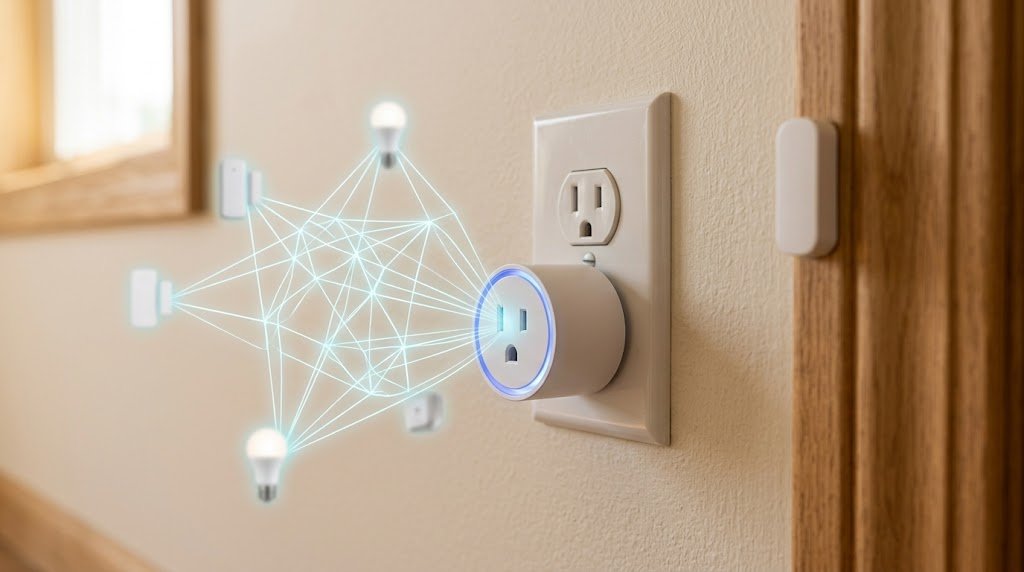
Because Zigbee shares the crowded 2.4 GHz spectrum with Wi-Fi and Bluetooth, channel overlap is the primary cause of sluggish performance and offline devices.
1. Coordinate Wi-Fi and Zigbee Channels
Wi-Fi channels are much wider than Zigbee channels. A single standard Wi-Fi channel can overpower multiple adjacent Zigbee frequencies:
- Set your 2.4 GHz Wi-Fi to Channel 1 or Channel 6.
- Lock your Zigbee hub to Channel 15, 20, or 25.
- This allocation creates a clean frequency buffer that prevents Wi-Fi broadcasts from drowning out low-power Zigbee packetshttps://www.atlassian.com/ .
2. Expand Your Mesh with Repeater Nodes
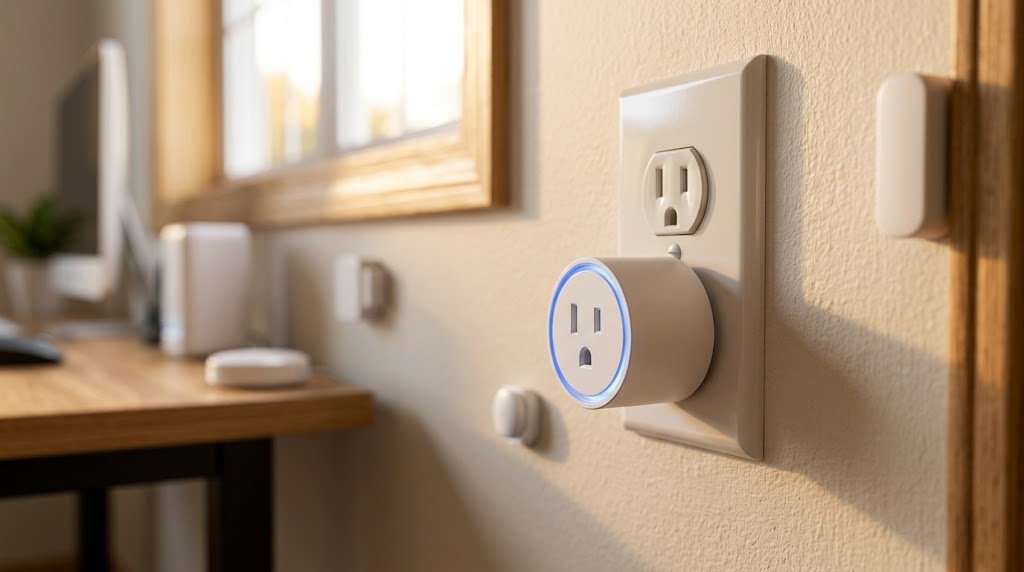
Battery-powered motion and door sensors do not repeat signals. To bridge long distances between your hub and remote sensors, install mains-powered Zigbee smart plugs or wall switches every 15 to 20 feet to serve as reliable mesh nodes.
[Internal Link: Essential Home Automation Tools and DIY Setup Basics]
Resolving Z-Wave Range and Routing Problems
Operating on sub-1 GHz radio frequencies allows Z-Wave signals to penetrate interior walls and solid furniture far better than 2.4 GHz protocols. However, physical barriers like metal junction boxes and foil-backed insulation can still impede signal paths.
1. Perform a Z-Wave Network Heal
When you add or relocate Z-Wave switches or locks, the central hub must update its internal routing tables:
- Open your Z-Wave controller app (e.g., Home Assistant, SmartThings, or Hubitat).
- Navigate to Z-Wave Details / Utilities.
- Select Repair Z-Wave Network (or “Heal Network”).
- Allow 15 to 30 minutes for the hub to rediscover the most efficient paths between nodes.
2. Overcome Physical Attenuation
Thick masonry walls, metal mirror backings, and large appliance enclosures attenuate Z-Wave radio signals. Avoid installing hubs directly inside metal media enclosures or tucked behind big-screen televisions.
Preventative Maintenance for Uninterrupted Smart Home Automationhttps://fibozin.com/
Maintaining a stable smart home network requires routine monitoring and occasional hardware maintenance:
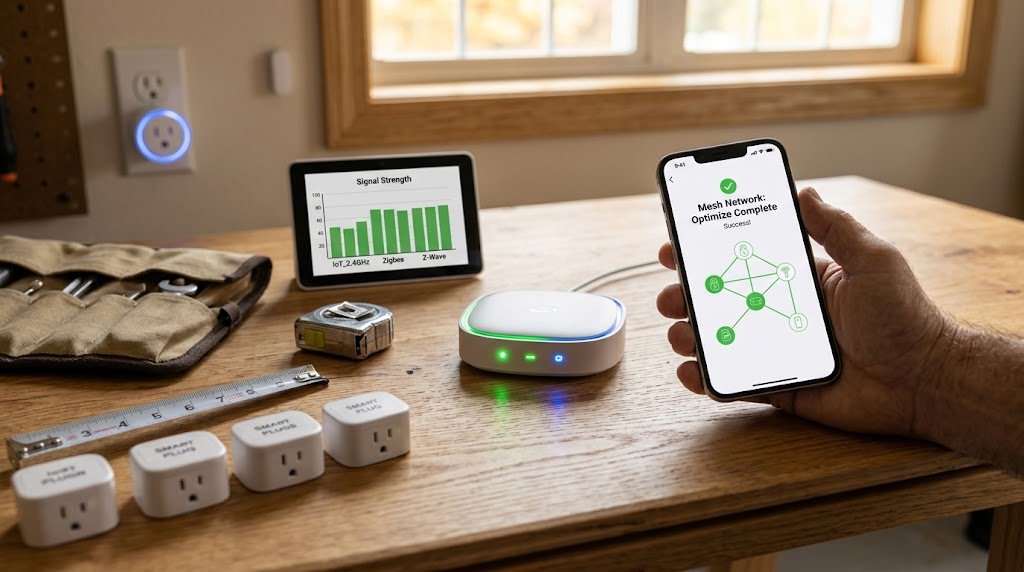
- Update Gateway Firmware: Check monthly for firmware updates on your Wi-Fi routers, Zigbee bridges, and smart hubs to receive signal stability patches and security fixes.
- Replace Battery Sensor Power Early: Replace coin-cell batteries when charge levels drop below 15%; low voltage causes sensors to transmit intermittent signal bursts before failing completely.
- Use Uninterruptible Power Supplies (UPS): Plug your main modem, router, and smart home hub into a small UPS battery backup to protect network routing tables from dropping during minor power flickers.
Conclusion
Taking the time to systematically fix smart home connectivity issues transforms a frustrating network of offline devices into an efficient, responsive automation ecosystem. By separating Wi-Fi frequency bands, eliminating channel overlap between 2.4 GHz Wi-Fi and Zigbee, rebuilding mesh routes with line-powered repeater plugs, and running periodic network heals Fix smart home connectivity issues, you guarantee that every light switch, sensor, and lock responds instantly when called upon.
Frequently Asked Questions (FAQs)
Why do my smart plugs keep disconnecting from Wi-Fi randomly?
Random disconnections are typically caused by dual-band routers attempting to force 2.4 GHz-only smart plugs onto the 5 GHz band, or by IP lease timeouts. Assigning static IP addresses and creating a separate 2.4 GHz SSID usually solves this problem.
How many Zigbee or Z-Wave devices can I connect to one hub?
A single Z-Wave hub supports up to 232 devices, while a standard Zigbee network can expand to over 65,000 devices. However, practical home limits depend on adding enough line-powered repeaters to maintain adequate mesh routing capacity.
Will a mesh Wi-Fi system interfere with my Zigbee network?
Mesh Wi-Fi systems constantly auto-select channels across the 2.4 GHz spectrum, which can lead to intermittent interference with Zigbee devices. Manually locking your mesh Wi-Fi to Channel 1 or 6 and locking your Zigbee hub to Channel 25 resolves co-channel interference.
Leave a Reply